Posting The Waybill
Posting The Waybill
Section titled “Posting The Waybill”The most essential function in the Shipment Connectors is transferring Shipment Data to the multi-carrier Platform, through to the given carrier thereby booking the shipment and printing the requested labels. While there is not inherently intended a specific process for when to use the Waybill as it is flexible and can be used both pre-posting and after posting of documents, and is therefore likely to cover the majority of different business’ and their various process along with that - We do envision the Waybill as the finalising part of the picking process once picking is completed for an order.
Once the pick has been completed, you have selected your given Shipping Agent & shipping agent service you can enter the amount of packages/pallets/colli you are shipping on the Waybill Header section and and enter the package type, weight and dimensions. Once this data has been entered you can navigate to Actions > Shipment > Post Waybill or via the shortcutkey Alt + P. This will then transfer the data from Business Central to the Multi-carrier platform and the requested labels will be printed to the designated printer immediately.
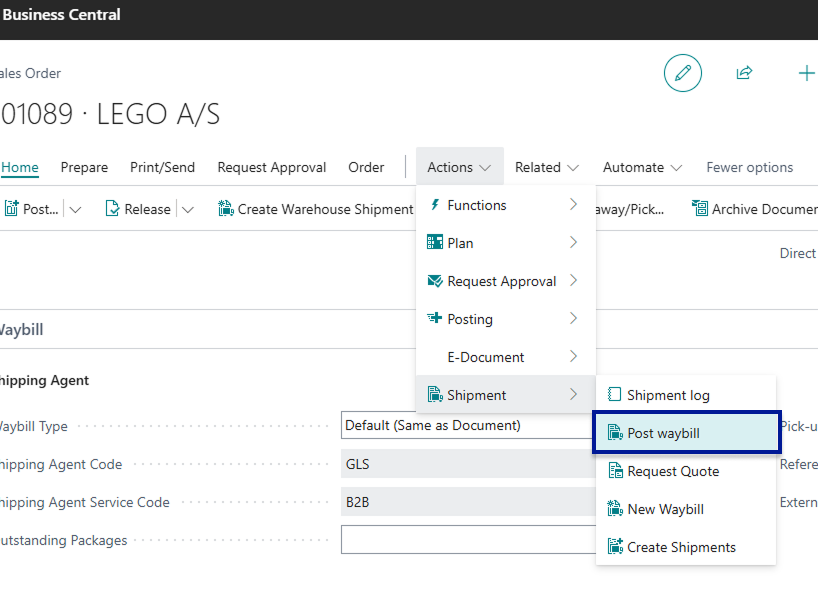
You can tell a Waybill Line has been posted by its status which changes from Open to Reserved.
Process Flow Overview
Section titled “Process Flow Overview”flowchart TD
AA([Sales Order created\nwith sales lines]) --> AB{Advanced Warehouse\nsetup?}
AB -- Yes --> AC[Create Warehouse\nShipment]
AB -- No --> AD[Pick from\nSales Order]
AC --> AC2[Create Pick from\nWarehouse Shipment]
AC2 --> AE[Warehouse worker\npicks the order/shipment]
AD --> AE
AE --> AF[Worker fills number\nof colli in Outstanding Packages]
AF --> AG[Worker selects\npackage type]
AG --> AH[Worker inserts weight\nand dimensions on Waybill line]
AH --> A
A([User clicks Post Waybill\nAlt+P]) --> G{Confirm Type?}
G -- Direct Print --> H[Resolve printer:\nUser Setup → Settings default]
G -- Confirm Shipment --> I[Show shipment\nconfirmation dialog]
G -- Confirm Packages --> J[Show per-package\nconfirmation dialog]
I -- Cancelled --> Z1
J -- Cancelled --> Z1
I -- Confirmed --> H
J -- Confirmed --> H
H --> K[Reset any Failed lines → Open]
K --> L[Build JSON payload:\nSender · Receiver · Carrier\nPackages · Services · Customs]
L --> M{Test Mode?}
M -- Yes --> N[POST to carrier\ntest endpoint]
M -- No --> O[POST to carrier\nlive endpoint]
N --> P{API response\nsuccessful?}
O --> P
P -- Error --> ERR2([Error logged\nLines stay Open])
P -- Success --> Q[Post customs entries]
Q --> R[Write Shipment Log\nper parcel]
R --> S[Assign tracking numbers\nWaybillHeader · WaybillLines\nSource document]
S --> T[Mark all WaybillLines\n→ Reserved]
T --> U[Set Outstanding\nPackages = 0]
U --> X([Done ✓\nLabel printed · Shipment booked])
style AA fill:#7f8c8d,color:#fff
style A fill:#4a90d9,color:#fff
style X fill:#27ae60,color:#fff
style ERR2 fill:#e74c3c,color:#fff