Customs
Customs
Section titled “Customs”For Shipments outbound for non-EU countries you are required to accompany the shipment with the appropriate Customs data. This can easily be handled with our Customs handling system.
Setup for Customs
Section titled “Setup for Customs”Firstly you should ensure that your items have the correct and valid data such as Country of Origin & Tariff Codes both of which are standard Business Central fields on the item card.
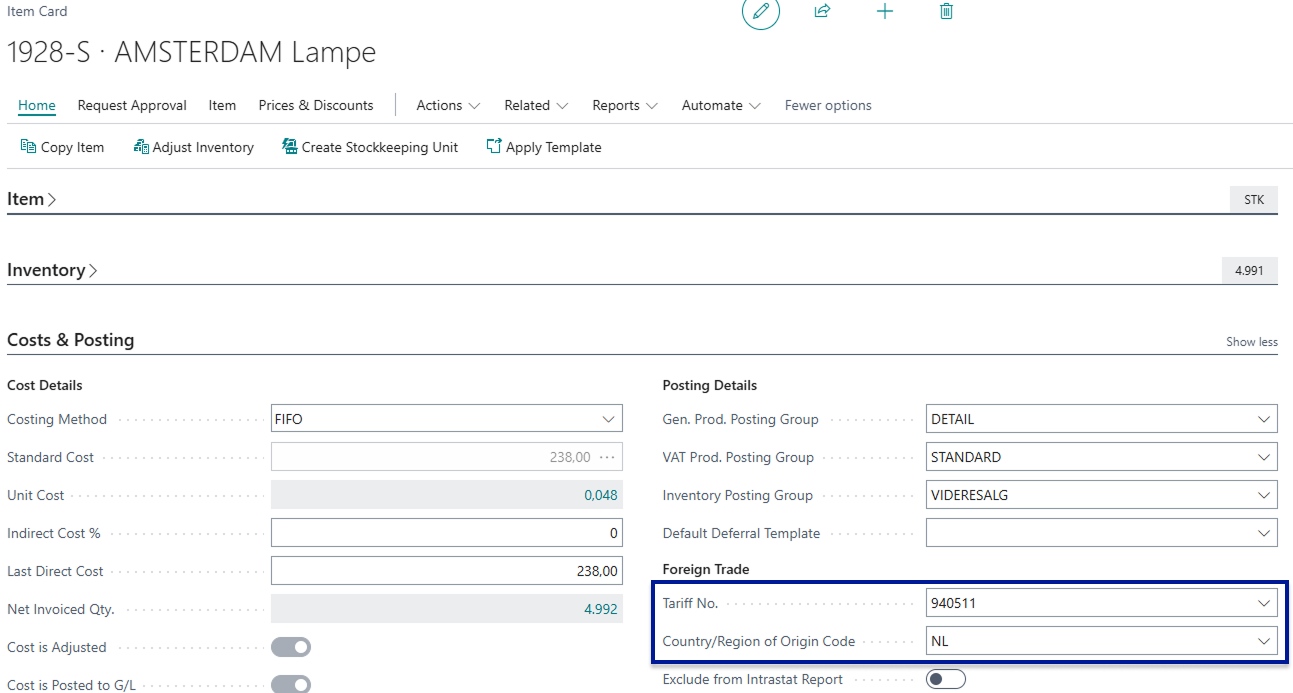
Besides Country of Origin & Tariff Codes from the item card the customs system will take the necessary information from the sales order lines, this includes Currency Code, Quantity, SKU (Item no.), unit weight, unit price (includes any discount on the lines)
Secondly, the shipping agent service will have a field called customs type where you have to select a type from the enum list. It depends on the carrier but usually this would be the unit value that you select, in rare instances it is the total value, ensure to contact the Multi-Carrier platform or the carriers themselves to ask what they prefer if in doubt.
Customs Type
Section titled “Customs Type”The Customs Type field on the Shipping Agent Service controls what value is declared to the carrier for each customs line. This setting is configured per Shipping Agent Service, so different services can use different customs types depending on what each carrier expects.
The field has three options:
- Default (Duty free) — No customs value is declared. The shipment is treated as duty-free and no monetary value is sent to the carrier. Use this for intra-EU shipments or any shipment where no customs declaration is required.
- Assign unit value — The unit price per item (excluding VAT, including any line discount) is sent to the carrier for each customs line. Use this when your carrier requires the per-unit value for customs declaration purposes.
- Assign total value — The total line value (excluding VAT, including any line discount) is sent to the carrier for each customs line. Use this when your carrier requires the total value per line rather than the individual unit price.
Export Reason
Section titled “Export Reason”The Export Reason field is found on Waybill Lines and is used to specify the reason for export on customs declarations for international shipments.
When shipping to non-EU countries, customs authorities require documentation that includes not only the value and description of the goods, but also the reason why the goods are being exported. The Export Reason field captures this information and forwards it to the carrier as part of the customs declaration.
Common export reason values include:
- Commercial sale — goods sold to a customer abroad
- Gift — goods sent as a gift with no commercial value
- Sample — goods sent as a product sample
- Return — goods being returned to the sender or supplier
When it is relevant: The Export Reason field applies to non-EU shipments where customs documentation is required. For intra-EU shipments, this field is not needed.
Where to find it: The Export Reason field is on the Waybill Lines. If it is not visible, it may be hidden — see Hidden Fields on Waybill Header and Waybill Lines for instructions on how to show hidden fields.
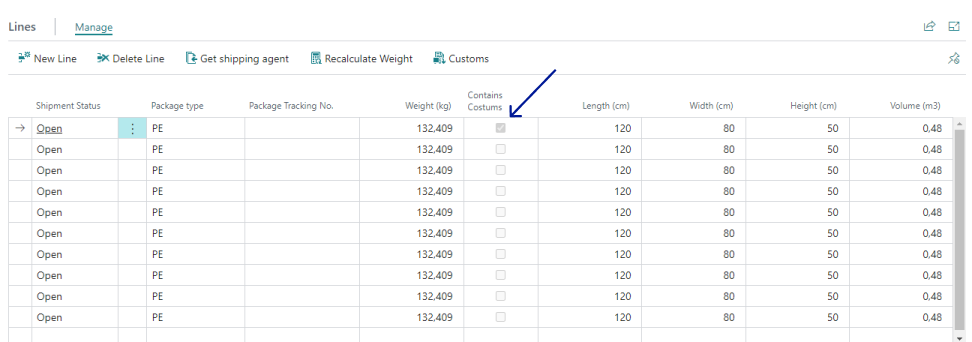
When you have completed your pick, filled out Waybill & Waybill lines then select the customs button in the ribbon above the Waybill lines

This will open a new page which holds your Customs data for the given order. To automatically create the customs information use the Create Customs lines button at the top of the page.
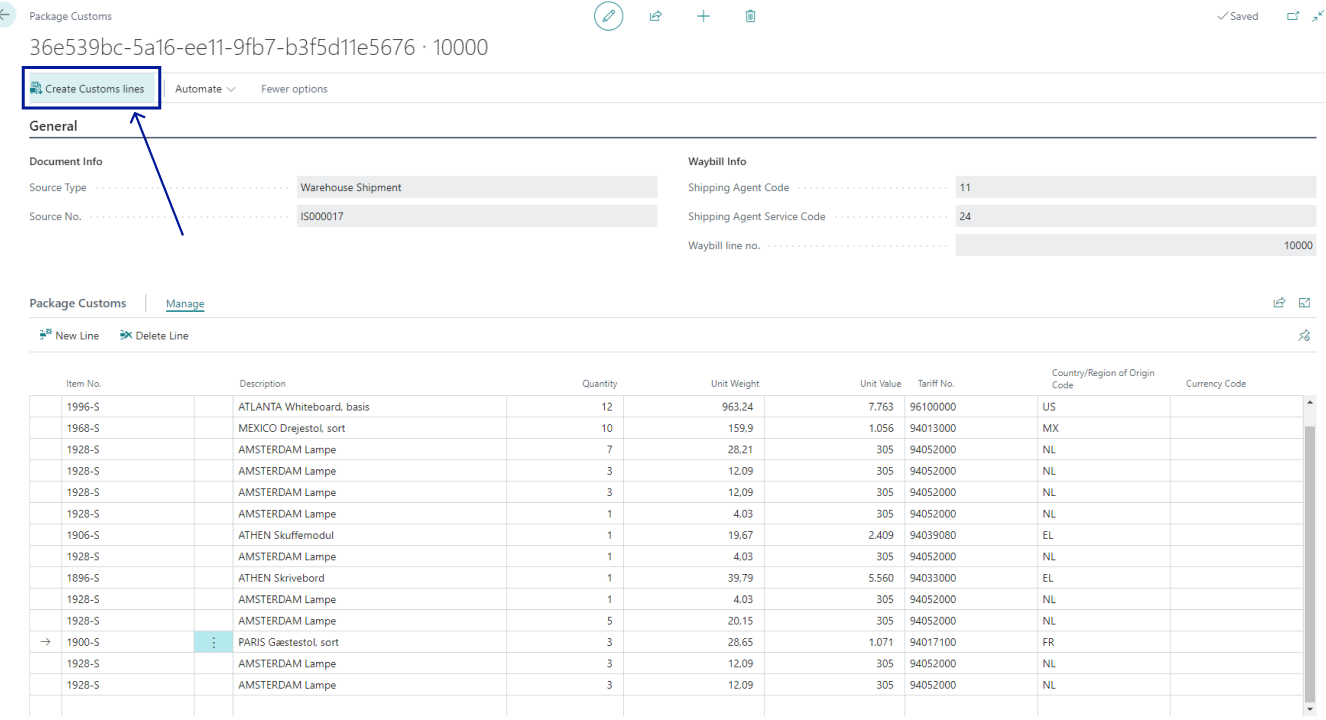
Once that is done you can check your data to see if anything is missing, however, if everything is in order you can simply exit this page and your shipment will now be accompanied by the proper customs information and based on this the Multi-Carrier platform will then automatically create a Proforma Invoice (also referred to as Paperless Invoicing) and sent to the carrier - Removing the now redundant necessity to manually create an invoice and sent to the carrier.