Integration Accelerator
Welcome to the features overview for Integration Accelerator - To quickly navigate in the feature list refer to the panel on the right hand side.
The Integration Accelerator is a versatile integration solution for Microsoft Dynamics 365 Business Central. It streamlines data flows between Business Central and external systems with robust features and a dynamic setup, eliminating the need for hardcoded API pages.
Key Features
Section titled “Key Features”- Dynamic API Configuration - Create and configure API endpoints without coding
- Activity Management - Define and control integration activities with flexible scheduling
- Inbound & Outbound Processing - Handle both incoming and outgoing data flows
- Azure Data Lake Integration - Publish data directly to Azure Data Lake Storage
- Error Handling - Comprehensive error tracking and management
- Job Queue Integration - Automated background processing with Business Central job queues
- Activity Dependencies - Control execution order of related integration activities
- Full & Delta Exports - Choose between complete data exports or only changes
Activities
Section titled “Activities”Activities are the core component of Integration Accelerator. An activity defines what data should be integrated, how it should be processed, and when it should run.
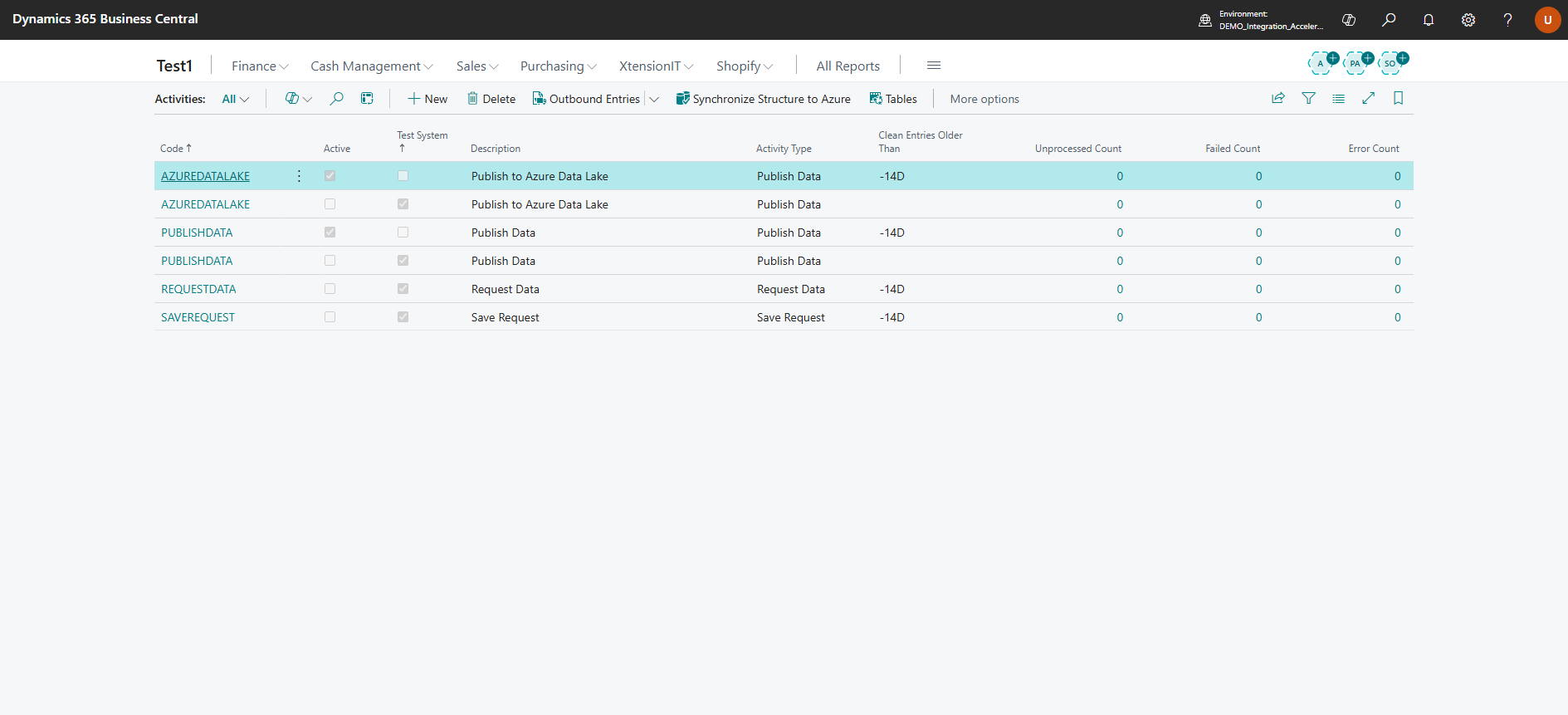
The Activities page shows all configured integration activities with their status, type, and error counts. You can see at a glance which activities are active, how many unprocessed or failed entries exist, and quickly navigate to related configuration pages.
Activity Types
Section titled “Activity Types”Integration Accelerator supports multiple activity types:
- Inbound Activities - Receive data from external systems into Business Central
- Outbound Activities - Send data from Business Central to external systems
- Publish Activities - Export data to Azure Data Lake or other storage solutions
Activity Configuration
Section titled “Activity Configuration”Each activity can be configured with:
- Activity Tables - Define which Business Central tables to include
- Activity Fields - Select specific fields to include in the integration
- Activity Table Links - Define relationships between tables
- Scheduling - Set up when activities should run automatically
- Error Handling - Configure how errors should be managed
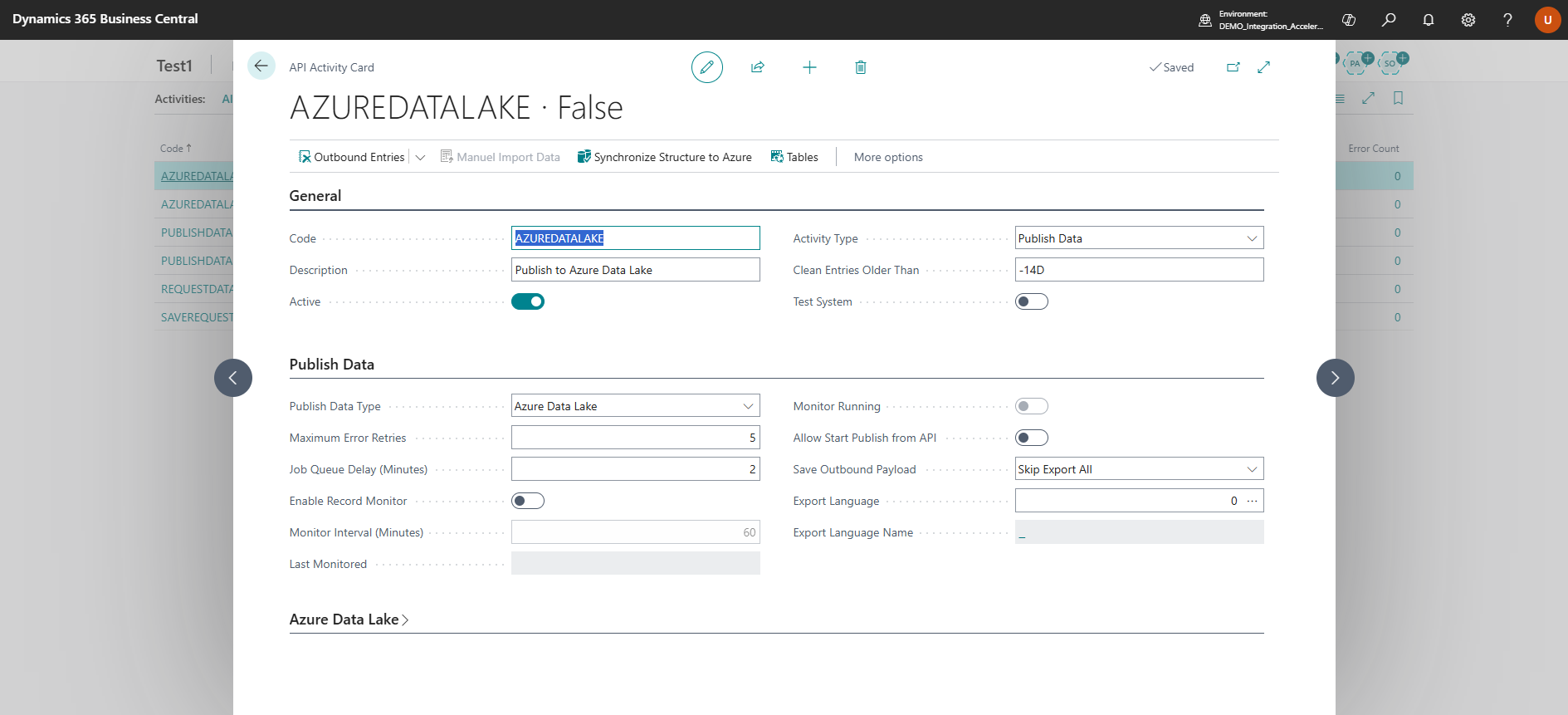
The Activity Card allows you to configure all aspects of an integration activity. In the General section, you define the activity code, description, whether it’s active, and the activity type (Save Request, Request Data, or Publish Data).
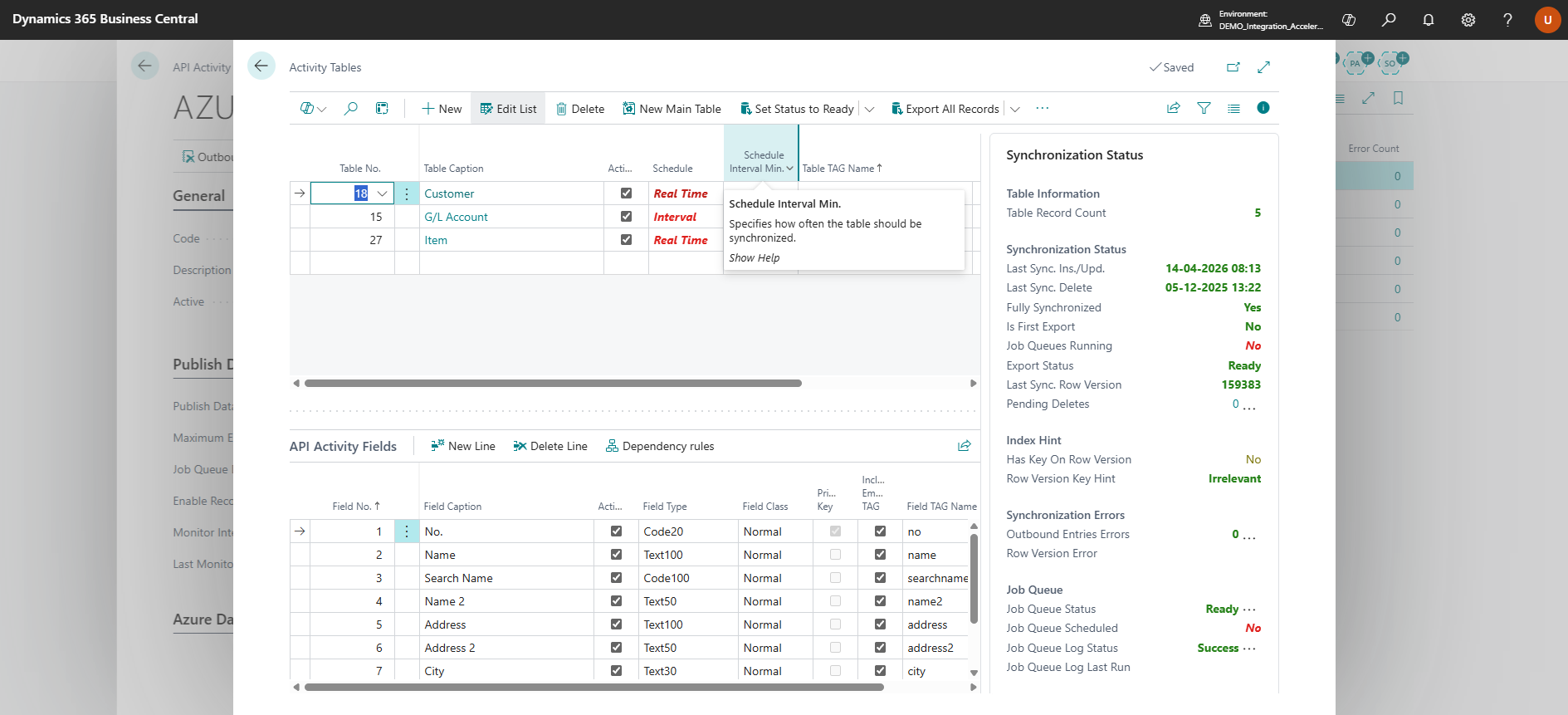
The Activity Tables page shows which Business Central tables are included in the activity. For each table, you can configure whether it’s active, set the scheduling (Real Time or Interval), define the table TAG name for export, and monitor the export status. This is where you control which data sources feed into your integration.
The Activity Fields page allows you to select exactly which fields from each table should be included in the integration. You can see the field number, caption, data type, and whether each field is included. This granular control ensures you only export the data you need, improving performance and reducing payload sizes.
Inbound Processing
Section titled “Inbound Processing”Inbound activities allow you to receive data from external systems and create or update records in Business Central.
Document Processing
Section titled “Document Processing”The Integration Accelerator includes a document processing system that:
- Receives JSON or XML data from external sources
- Validates the incoming data structure
- Creates or updates Business Central records
- Provides detailed error logging for failed imports
Batch Processing
Section titled “Batch Processing”Process multiple documents efficiently with batch processing capabilities:
- Import multiple records in a single operation
- Automatic error handling and retry logic
- Progress tracking and status updates
Outbound Processing
Section titled “Outbound Processing”Outbound activities send data from Business Central to external systems when records are created or modified.
Automatic Data Capture
Section titled “Automatic Data Capture”The Integration Accelerator automatically captures changes to configured tables:
- Monitors specified tables for changes
- Creates outbound entries when records are modified
- Supports both insert and update operations
- Configurable field-level change tracking
Outbound Entry Management
Section titled “Outbound Entry Management”Manage outbound data efficiently:
- View all pending outbound entries
- Manual or automatic processing
- Bulk operations for large data volumes
- Comprehensive error tracking
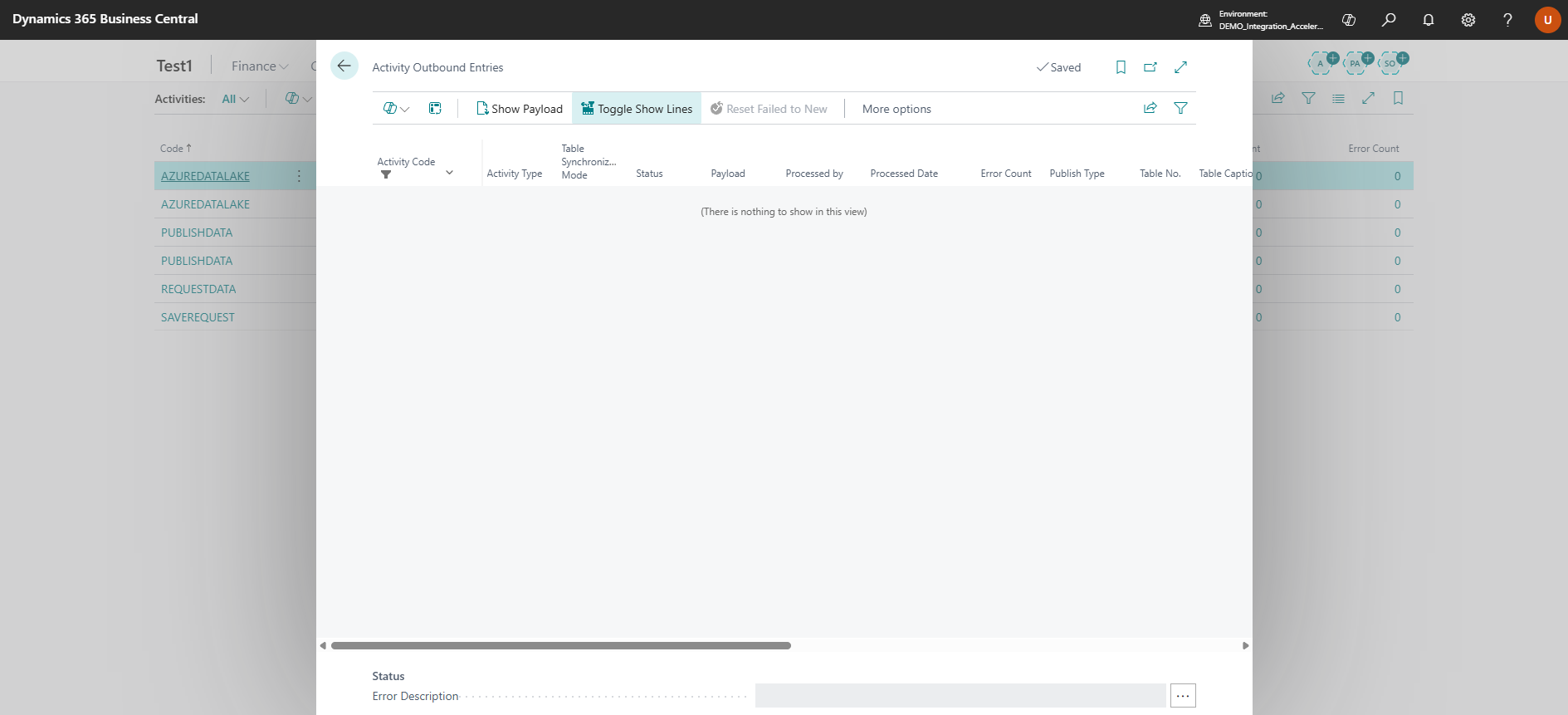
The Outbound Entries page displays all data waiting to be sent to external systems. You can monitor the status of each entry, view any errors, and manually process or retry failed entries. This provides full visibility into your outbound data flows.
Azure Data Lake Publishing
Section titled “Azure Data Lake Publishing”Publish Business Central data to Azure Data Lake Storage for analytics and reporting:
- CDM Format Support - Export data in Common Data Model format
- Spark Format Support - Export data optimized for Apache Spark
- Scheduled Publishing - Automatic data exports on a schedule
- Full & Delta Exports - Choose export strategy per activity
Publishing Configuration
Section titled “Publishing Configuration”Configure publishing activities with:
- Azure Storage Account credentials
- Container and directory structure
- Data format preferences
- Publishing schedule
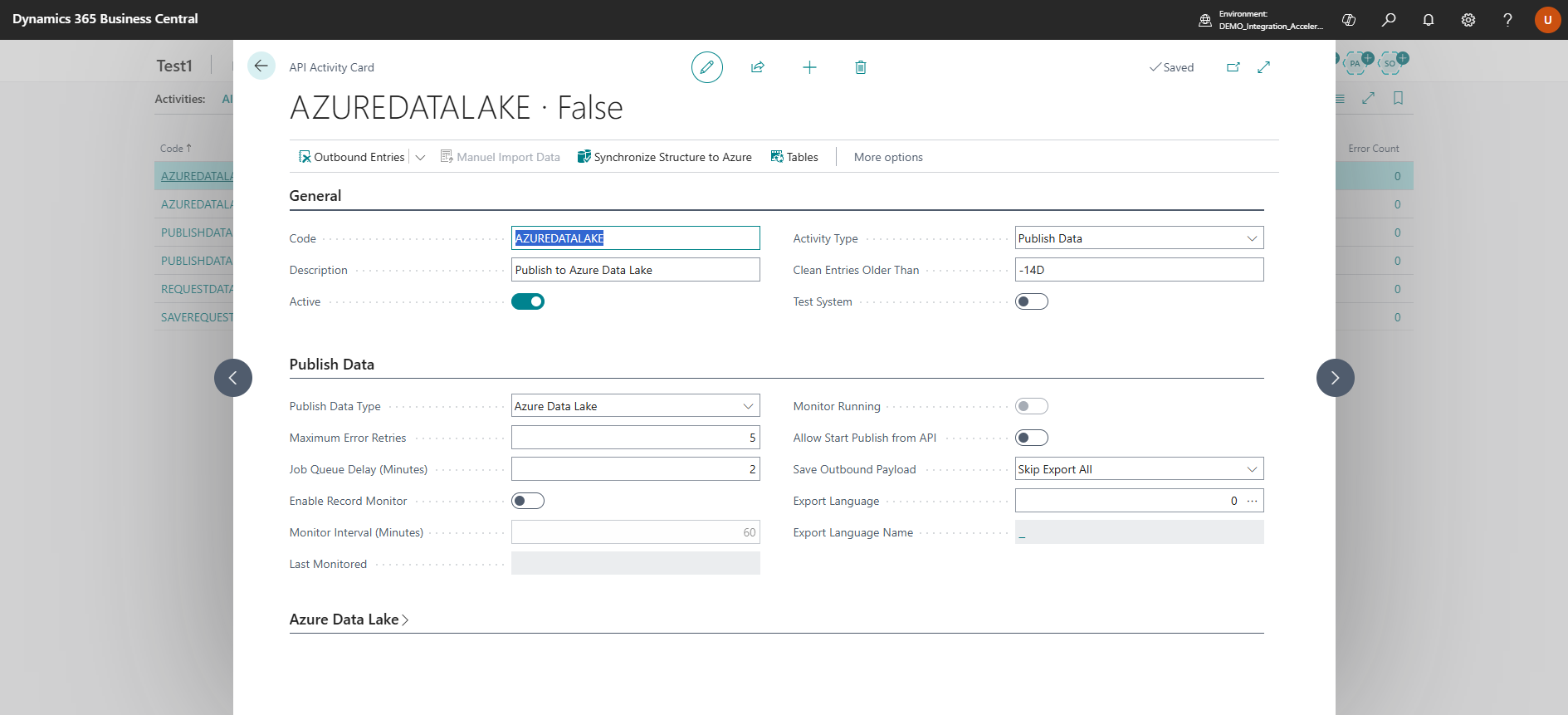
The Azure Data Lake configuration section allows you to set up your Azure Storage Account credentials, specify the container and directory structure, choose the storage type (Azure Data Lake or Microsoft Fabric), and configure data format options like CDM format (CSV or Parquet).
Activity Dependencies
Section titled “Activity Dependencies”Control the execution order of related activities:
- Define which activities must complete before others start
- Ensure data consistency across multiple integration flows
- Automatic dependency validation
- Visual dependency management
Error Handling
Section titled “Error Handling”Comprehensive error management ensures reliable integrations:
- Detailed Error Logging - Track all integration errors with full context
- Retry Logic - Automatic retry for transient failures
- Error Notifications - Alert users when manual intervention is needed
- Error Resolution - Tools to fix and reprocess failed entries
Job Queue Integration
Section titled “Job Queue Integration”Leverage Business Central’s job queue for automated processing:
- Schedule activities to run automatically
- Background processing without user interaction
- Job queue category support for organization
- Automatic re-run for new entries during processing
License Management
Section titled “License Management”Integration Accelerator includes built-in license management:
- View license information and expiration dates
- Monitor usage and capacity
- Easy license activation process
Getting Started
Section titled “Getting Started”To start using Integration Accelerator:
- Install the app from Microsoft AppSource
- Configure your first activity
- Set up activity tables and fields
- Test with sample data
- Enable automatic processing
For detailed setup instructions, see the Quick Start Guide.