Multi Entity Management
How to setup replication with Item Attributes
Section titled “How to setup replication with Item Attributes”Version: July 2025 / Multi Entity Management 7.5.5 / Business Central 26.0
1. Preamble
Section titled “1. Preamble”This How-to document describe the setup and replication of Item Attributes.
2. Publishing Item Attributes.
Section titled “2. Publishing Item Attributes.”In contrast to other data related to a specific Item No., which are setup as associated records, like Variants, Translations and Item Unit of Measure etc. The Item Attribute is not handled as an associated table to the Item table, but must be publish as single tables.
A typically publish setup of Item is show below
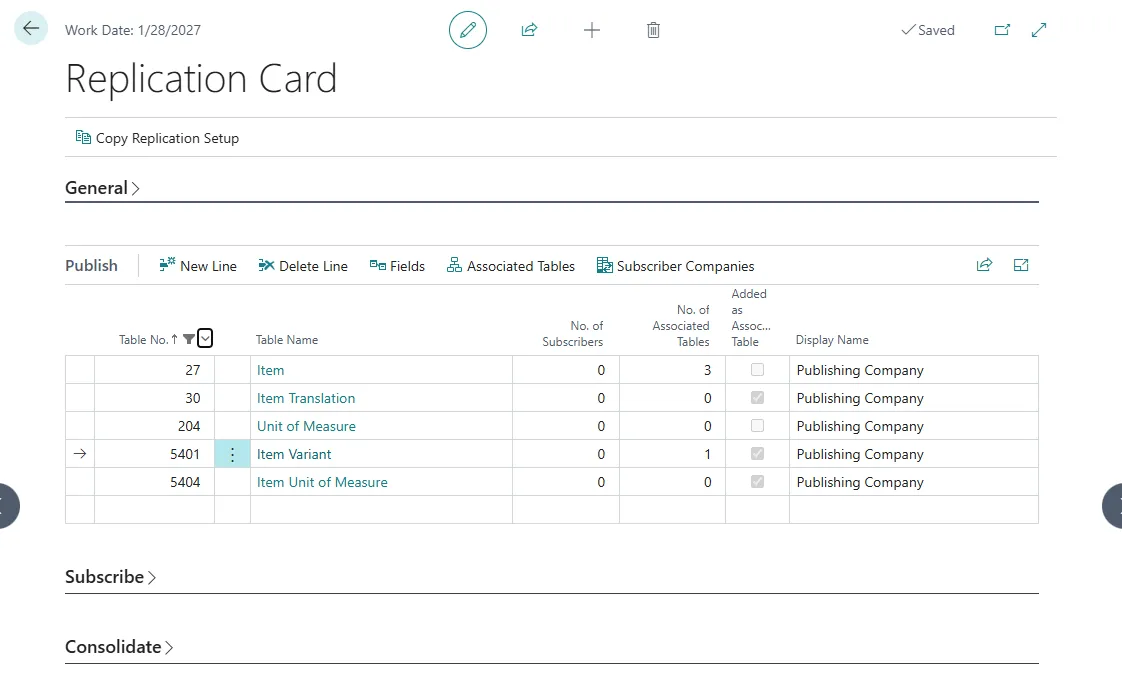
Where the following tables are published
- 27 Item
- 30 Item Translations
- 5401 Item Variant
- 5404 Item Unit of Measure
- 204 Unit of Measure
Where Items and Unit of Measure will be replicated as independent records, where the associated records only will be replicated when they are related to an replicated Item.
All the Item Attributes tables must be handled as independend records and published as shown below
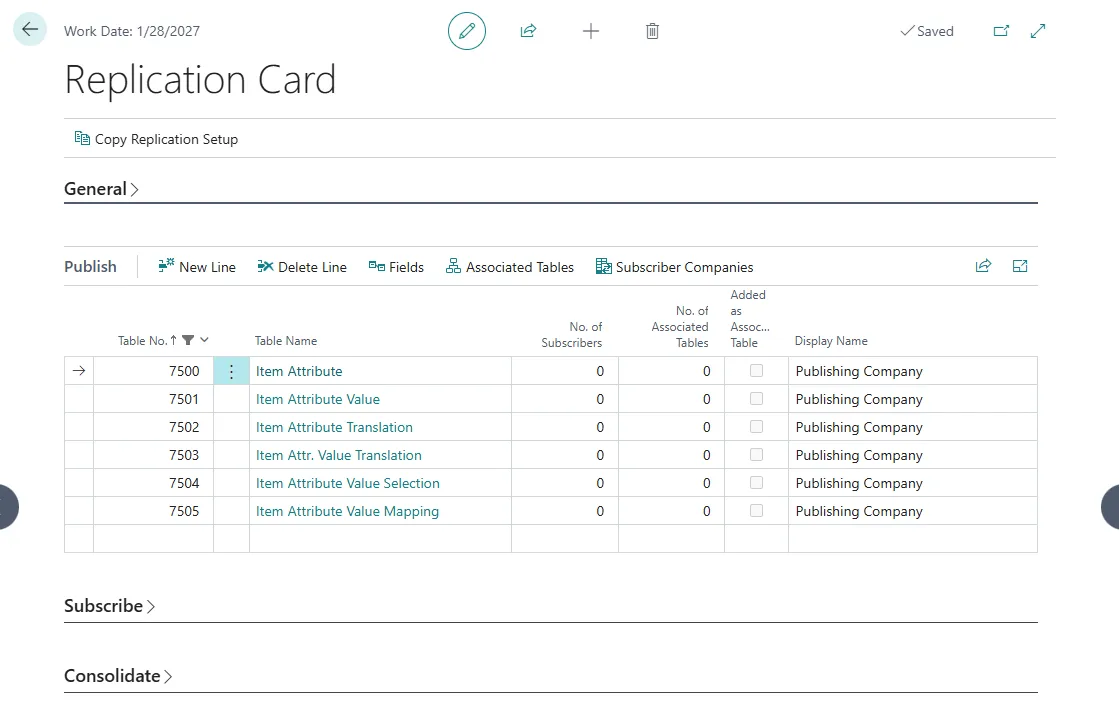
-
7500 Item Attribute
-
7501 Item Attribute Value
-
7502 Item Attribute Translation
-
7503 Item Attr. Value Translation
-
7504 Item Attribute Value Selection
-
7505 Item Attribute Value Mapping
3. Subscribing on Item Attributes.
Section titled “3. Subscribing on Item Attributes.”When enabling subscription up for Item Attributes in a Subscriber company, first do the setup for Item with the associated records and the Unit of Measure table.
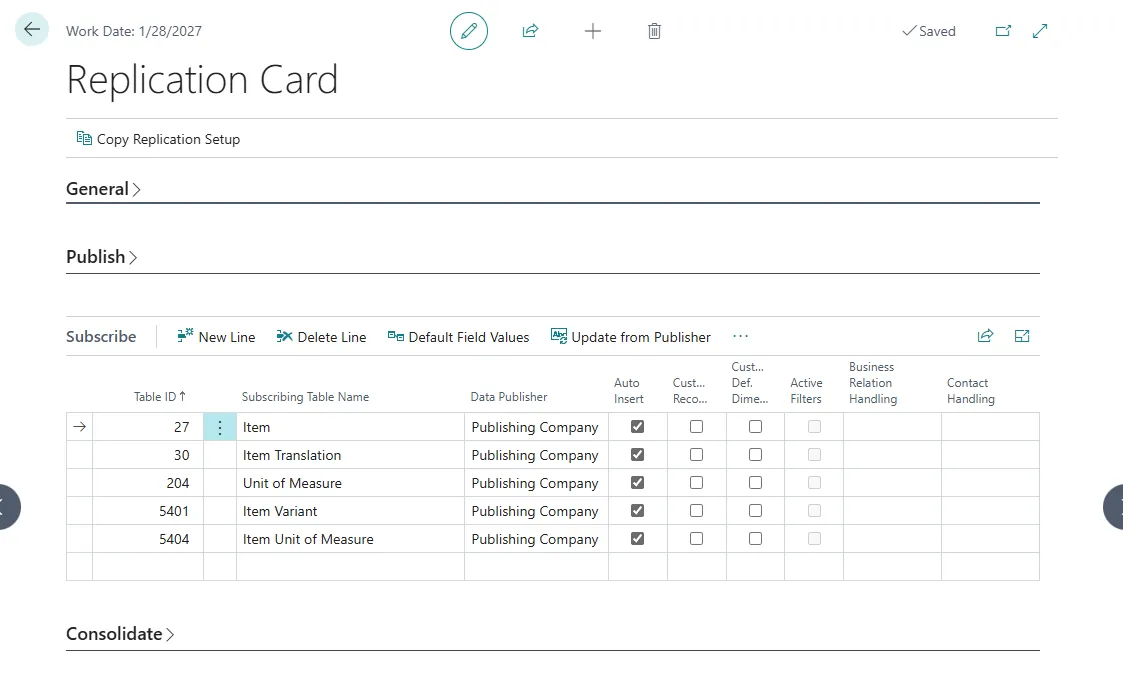
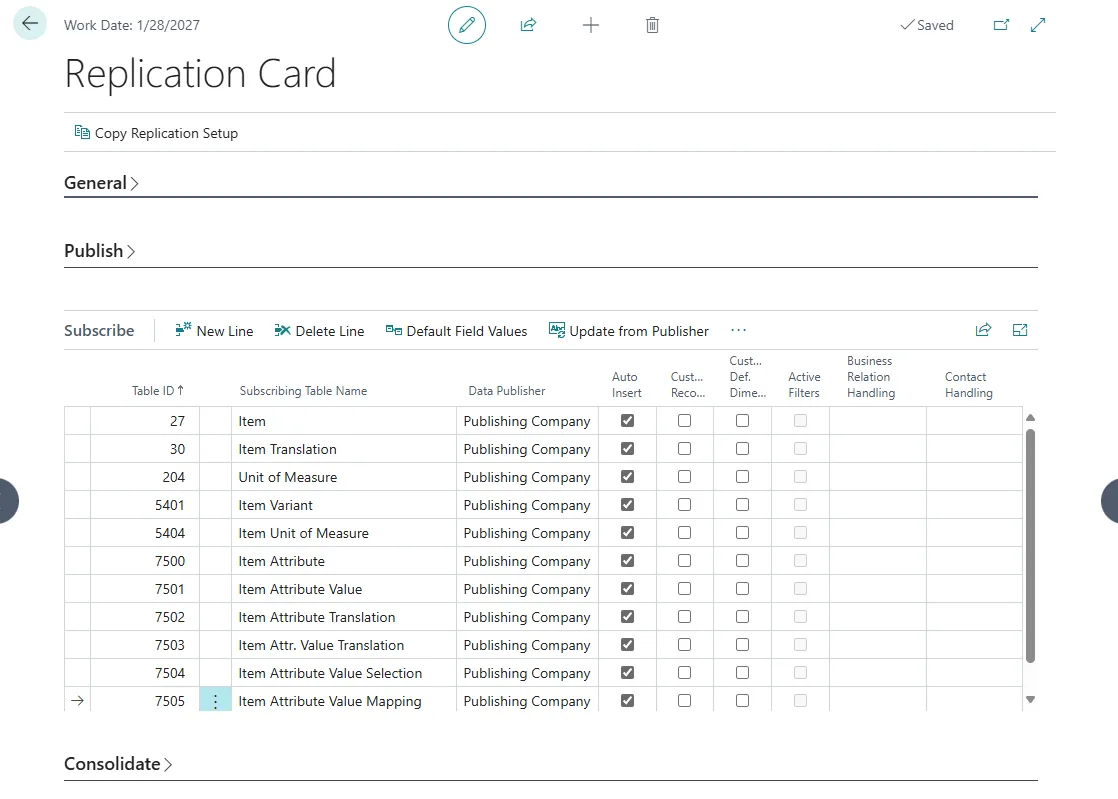
Then insert the Item Attributes tables one by one and enable Auto Insert functionality and push Yes to transfer.
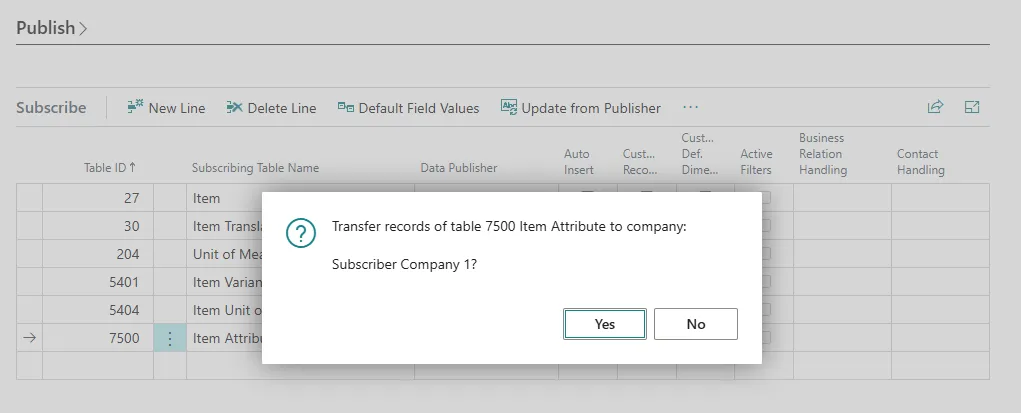
The final setup will look like this
4. Troubleshooting.
Section titled “4. Troubleshooting.”If the Item Attributes must be replicated to a Subscriber Company with existing data, there are some preprerations that must be done before the replication can be initiated.
4.1 Auto incremental id
Section titled “4.1 Auto incremental id”Item Attributes is special in the way, that the identification id (primary key) for each Item Attributes is an Auto Incremental value, which just add 1 to the value each time a record is inserted.
The master data engine in Multi Entity Management use the Primary Key to connect the records in each Environment and Company. To replicate data based on an auto incremental primary key, require that both the Publisher and Subscriber dataset primary key values is syncronized, so the next record in both the Publisher and Subscriber table will start with the same value.
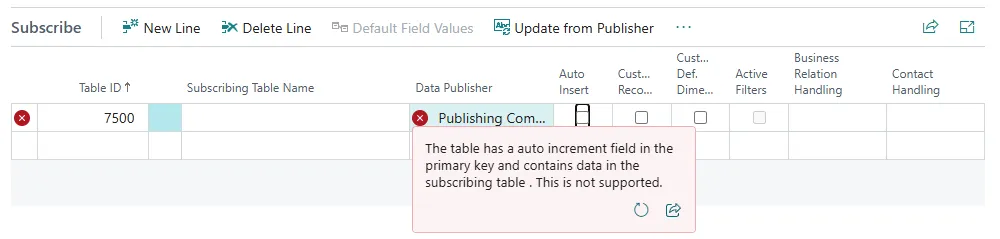
- Both tabels 7500 Item Attribute and 7501 Item Attribute Value must be empty in the Subscribing Company. Multi Entity Management will show an error if there is records in the subscribing table
-
The tables below have all a Primary key with a normal field type as an identifier, so there is no need for an empty table or initial syncronization on the Primary key value.
- 7502 Item Attribute Translation
- 7503 Item Attr. Value Translation
- 7504 Item Attribute Value Selection
- 7505 Item Attribute Value Mapping
-
The table 7506 Filter Item Attributes Buffer is a buffer table and schould not be replicated.
4.2 Replication on Subscriber Companies with Attributes Data
Section titled “4.2 Replication on Subscriber Companies with Attributes Data”This section describe the process how to synscronize the primary keys and setup the Item Attribues replication.
-
Step 1:
-
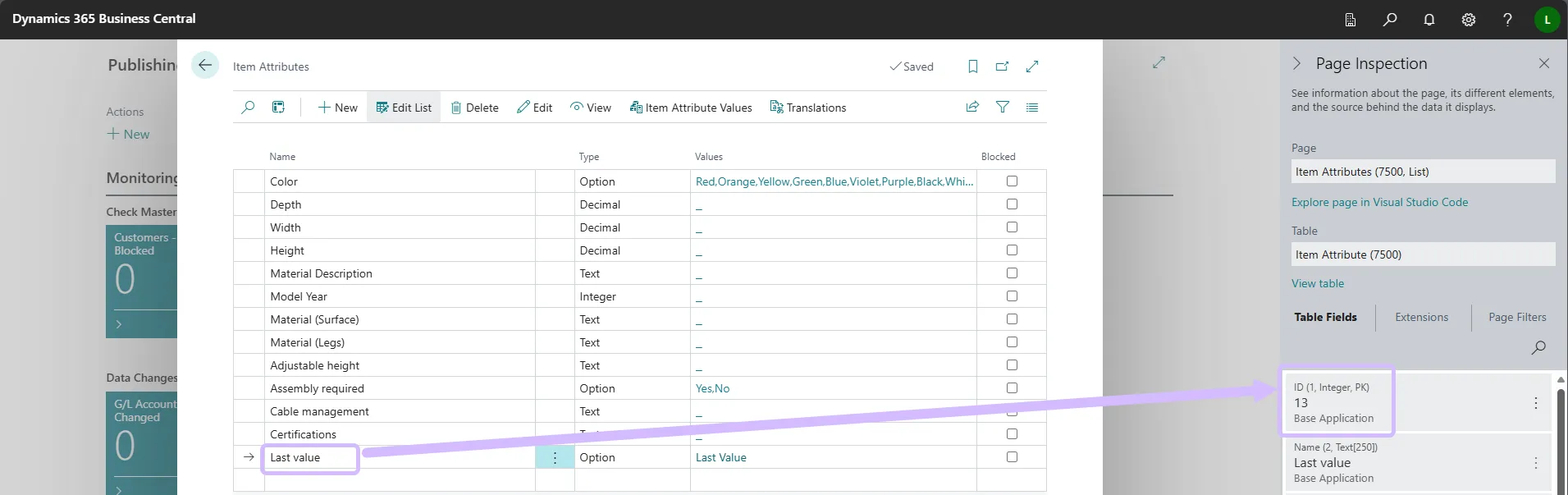
In the Publisher Company you have to find the greatest value of the primary key for both the 7500 Item Attribute and 7501 Item Attribute Value tables.
-
Create a new Item Value and a new Item Attribute Value
-
Use the Zoom functionality to read the value.

-
-
Step 2
- Do the same in the subscriber Company
-
Step 3
- Delete all the Attributes and Attributes Value in the Subscriber Company
-
Step 4
- Use the Admin Tools to syncronize the Primary Keys in both the Publishing and Subscribing Company
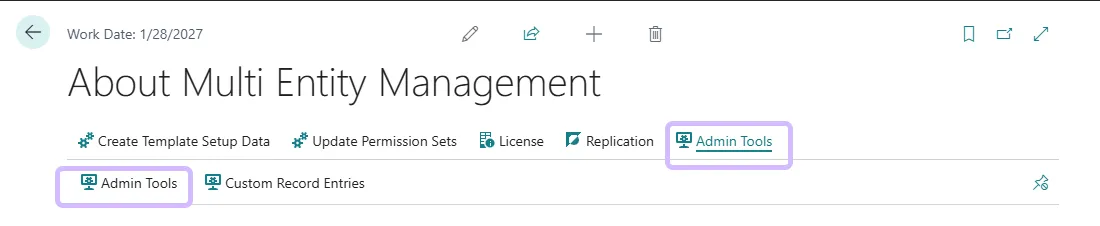
For both the Publisher and Subscriber Companies, use the functionaliti below to align the Primary key numbers in both the Attributes and the Attribute Value

-
Step 5
- Then insert the Item Attributes tables one by one and enable Auto Insert functionality and push Yes to transfer.