Multi Entity Management
Multi-environment setup
Section titled “Multi-environment setup”Version: August 2025 / Multi Entity Management 7.7.2 / Business Central 26.0
1. Preamble
Section titled “1. Preamble”This Guide describe how to setup Multi Entity Management for publishing data to Entities (Companies) located in separate environments or databases.
- The term Environment is used to describe one or more Business Central environment(s) stored in a Business Central tenant.
- The term database is used to describe an on-premises Business Central database.
- The term entity is used to describe one or more companies in an environment/database.
This Guide will use the term “Environment” covering both environments (cloud) and databases (on-prem).
Start with the Subscriber environment setup. After the preparation of the subscribing environment, all the publishing setups will be managed in the Publisher environment.
The best practice is to create a Local Publisher entity in the Subscriping environment. The Local Publisher in the Subscriber Environment will publish all data received from the External Publisher and re-publish the data to the Subscribing Entities in the Subscriber Environment.
2. Preparing the Subscriber Environment
Section titled “2. Preparing the Subscriber Environment”Start the Setup with preparing the subscriber environment to receive data from the publisher environment.
Follow the steps below:
2.1. Initial Setup
Section titled “2.1. Initial Setup”2.1.1 Select Role
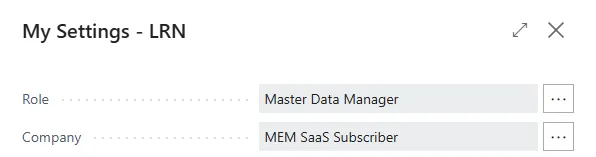
Section titled “2.1.1 Select Role”Start Business Central with the Role Master Data Manager. Use the My Settings page to do this.
2.1.2 Create initial setup data
Section titled “2.1.2 Create initial setup data”Go to About Multi Entity Management page.
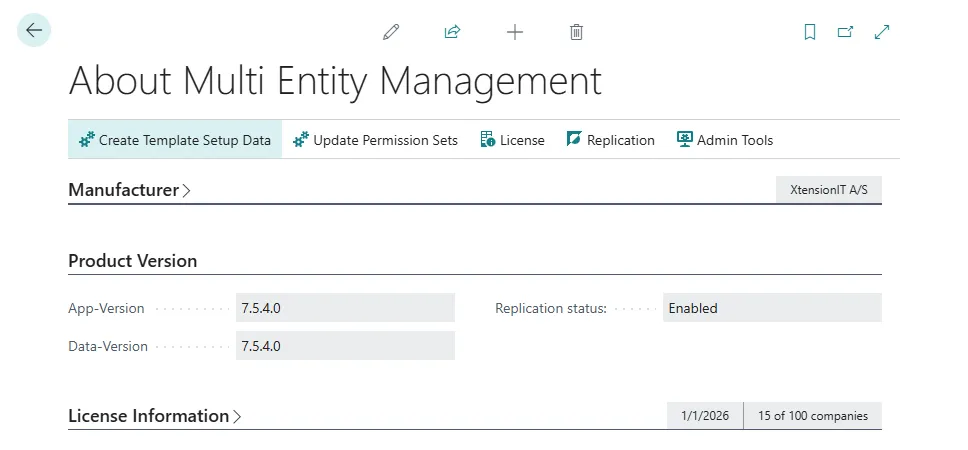
Activate the function: “Create Template Setup Data”
For Microsoft Dynamics 365 Business Central, version 17 and below.
- Activate the function: “Update Permissions Sets”.
2.2. Multi-environment Setup
Section titled “2.2. Multi-environment Setup”Go to the page Multi-environment Setup.
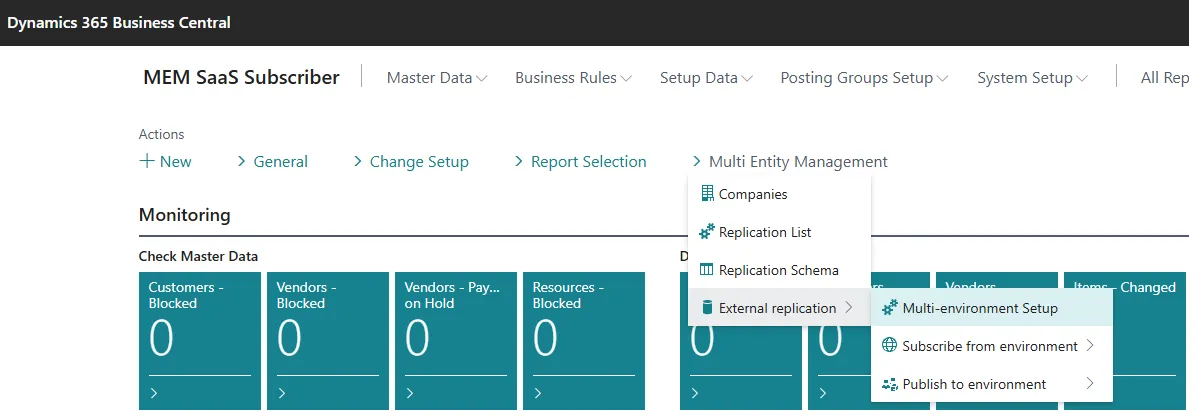
When the Multi-environment Setup page is opened, Multi Entity Management performs an automatic setup.
NOTE: The General section, is only used, if the Subscriber Company, also acts as a Multi-environment Publisher.
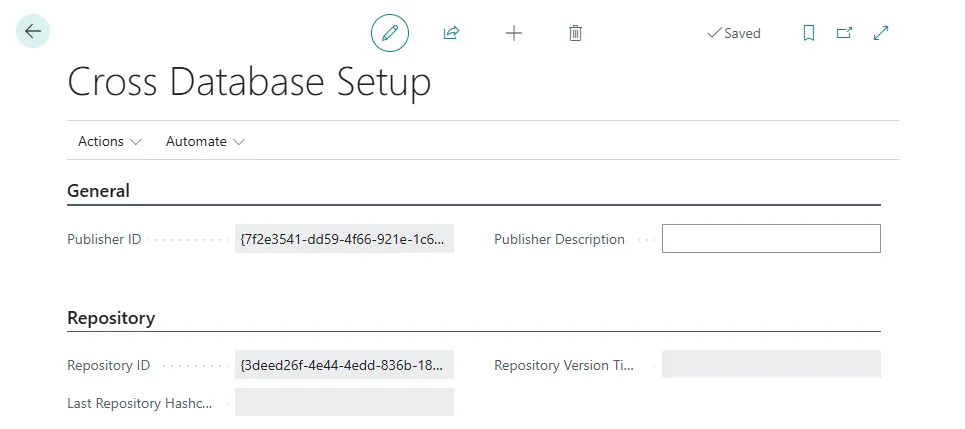
After the page is displayed, the initial setup has been done and the page can safely be closed again.
2.3. Setup API Web services
Section titled “2.3. Setup API Web services”To receive data from another publisher environment, the subscriber environment must publish a SOAP or REST webservice.
- Multi Entity Management
- version 7.4.0 -> : Use the REST webservice
- version 5.10.2 - 7.3.0 : Use the 2 x SOAP webservices
NOTE: API must be enabled for Business Central on premises databases.
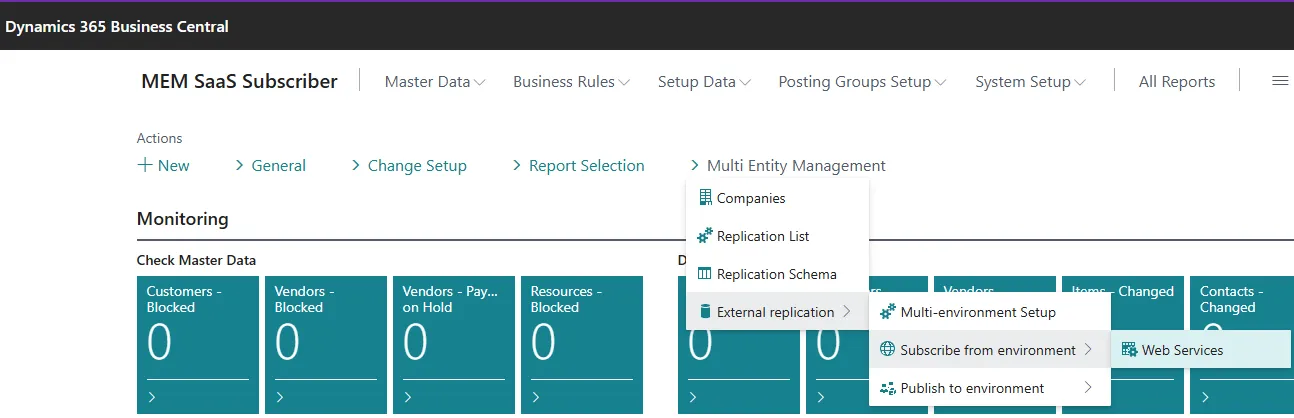
Go to External replication > Subscriber environment and open the page Web Services.
2.3.1. REST setup (Recommended)
Section titled “2.3.1. REST setup (Recommended)”At the Web Service Page insert the MEM REST API codeunit.

-
Add Codeunit 5397805 - XTEMEM Mem Endpoints to the list.
-
In the field Service Name, name the service MemEndpoints
-
Remove the checkmark in the All Tenants field.
-
Set a checkmark in the field Published.
-
When publishing the REST Web Service, an URL is created in field SOAP URL.
- Activate the web service URL to check that they are working.
2.3.2. SOAP setup
Section titled “2.3.2. SOAP setup”At the Web Service Page insert the two MEM SOAP API codeunits.
NOTE: The ability to expose a Microsoft UI page as a SOAP endpoint is being removed. Learn more on the Feature Management page in Business Central.

-
Add Codeunit 5397816 - XTEMEMSubscriber Data Service to the list.
-
In the field Service Name, name the service MemSubscriberService
-
Remove the checkmark in the All Tenants field.
-
Set a checkmark in the field Published.
-
-
Add Codeunit 5397819 - XTEMEM Subscr Mgt Svc Interf to the list.
-
In the field Service Name, name the service MemManagementService
-
Remove the checkmark in the All Tenants field.
-
Set a checkmark in the field Published.
-
When publishing the two SOAP Web services, an URL is created in field “SOAP URL” for each webservice.
- Activate both web service URL to check that they are working.
3. Preparing the Publisher Environment
Section titled “3. Preparing the Publisher Environment”The next step is preparing the Publisher environment to publish master data to the subscribing environment(s).
Follow the steps below:
3.1. Initial Setup
Section titled “3.1. Initial Setup”3.1.1 Select Role
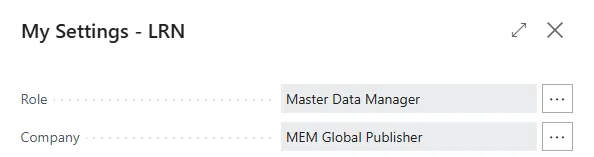
Section titled “3.1.1 Select Role”Start Business Central with the Role Master Data Manager. Use the My Settings page to do this.
3.1.2 Create initial setup data
Section titled “3.1.2 Create initial setup data”Go to About Multi Entity Management page.
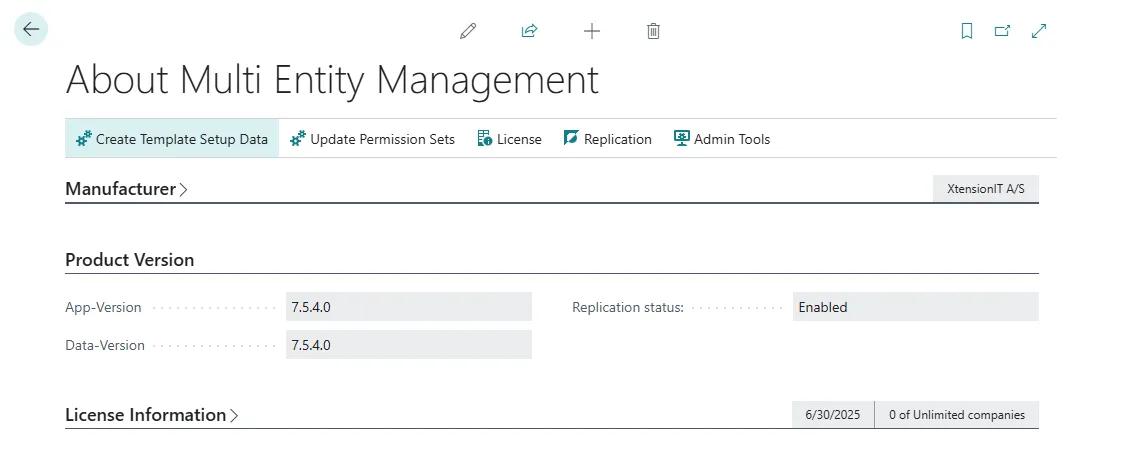
Activate the function: “Create Template Setup Data”
For Microsoft Dynamics 365 Business Central, version 17 and below.
- Activate the function: “Update Permissions Sets”.
3.2 Multi-environment Setup
Section titled “3.2 Multi-environment Setup”Go to the page Multi-environment Setup.
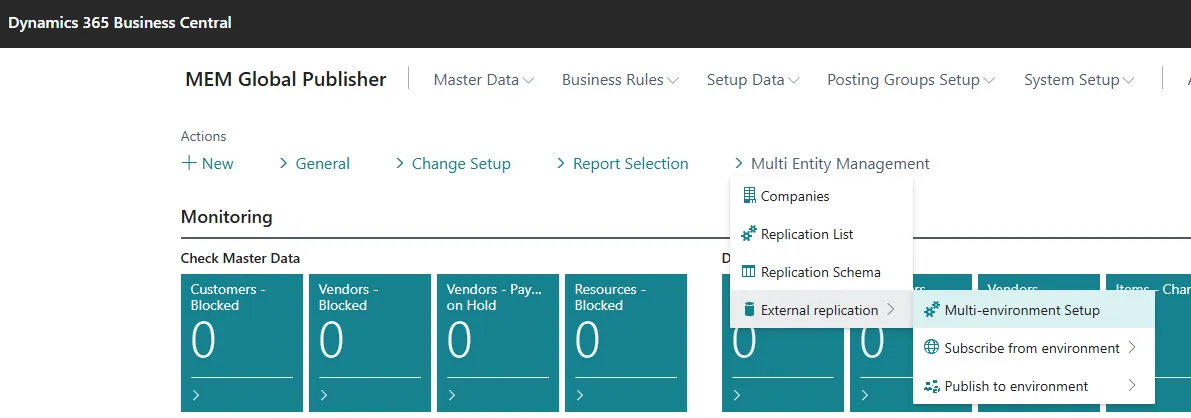
When the Multi-environment Setup page is opened, Multi Entity Management performs an automatic setup.
NOTE: The General section, the name for the Multi-environment Publisher can be defined.
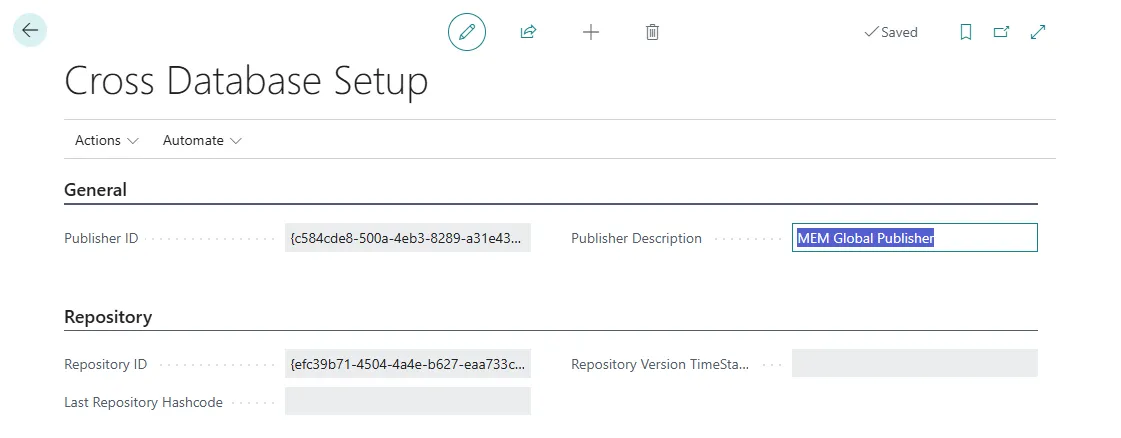
After the page is displayed, the initial setup has been done and the page can safely be closed again.
3.3. Publishing entity setup
Section titled “3.3. Publishing entity setup”Go to the Replication Card and Publish at least one table at the publishing entity.
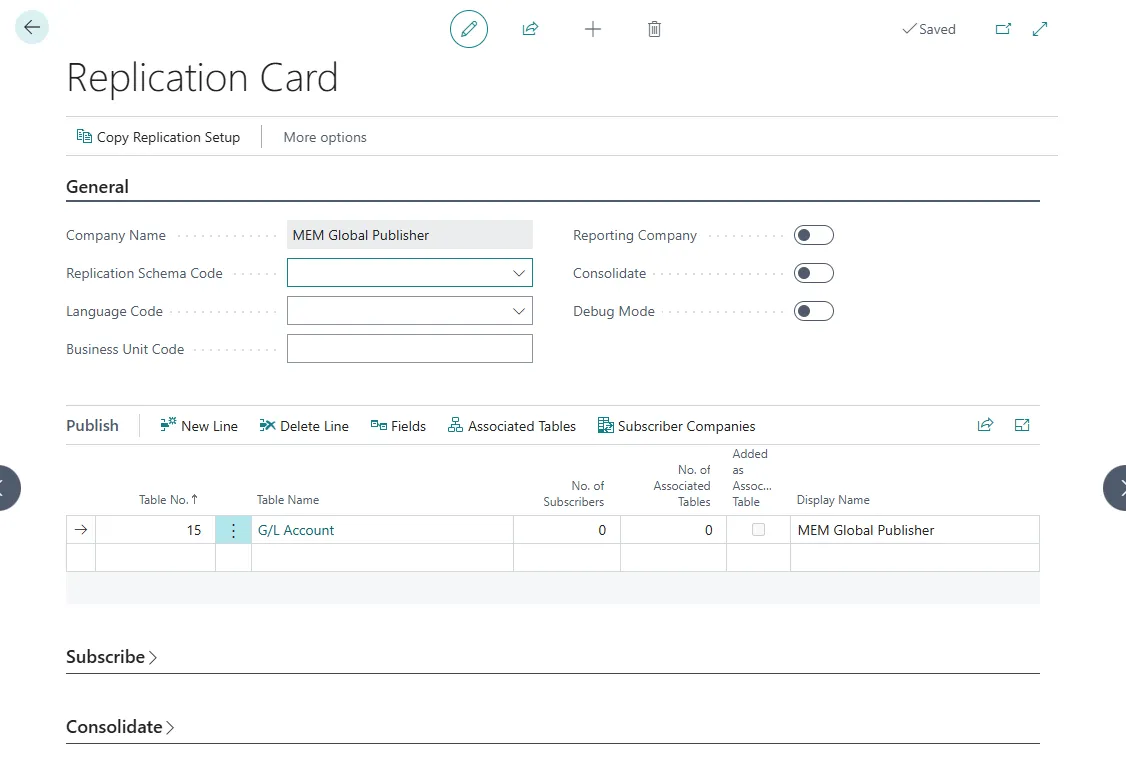
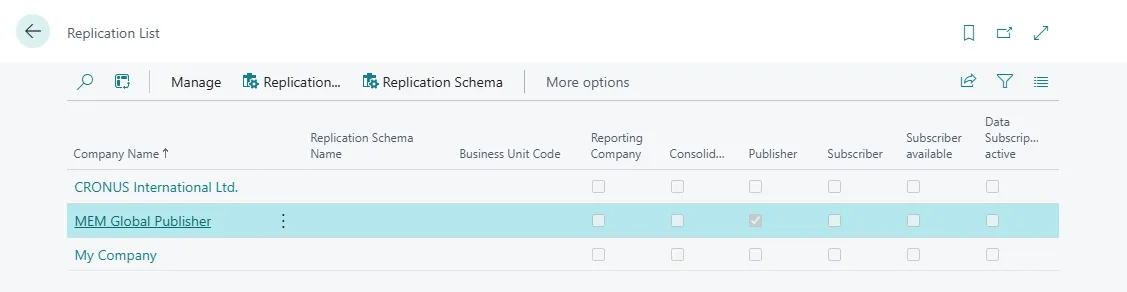
The entity is now marked as Publisher in the Replication List page.
3.4. Repository List
Section titled “3.4. Repository List”Go to the Repository List
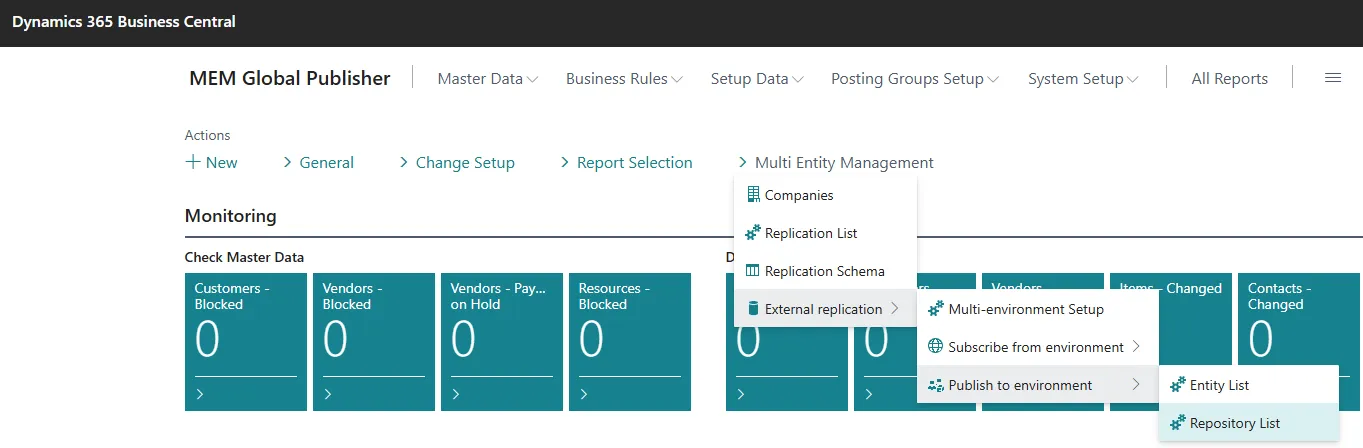
Create a CODE and Description for the Repository.
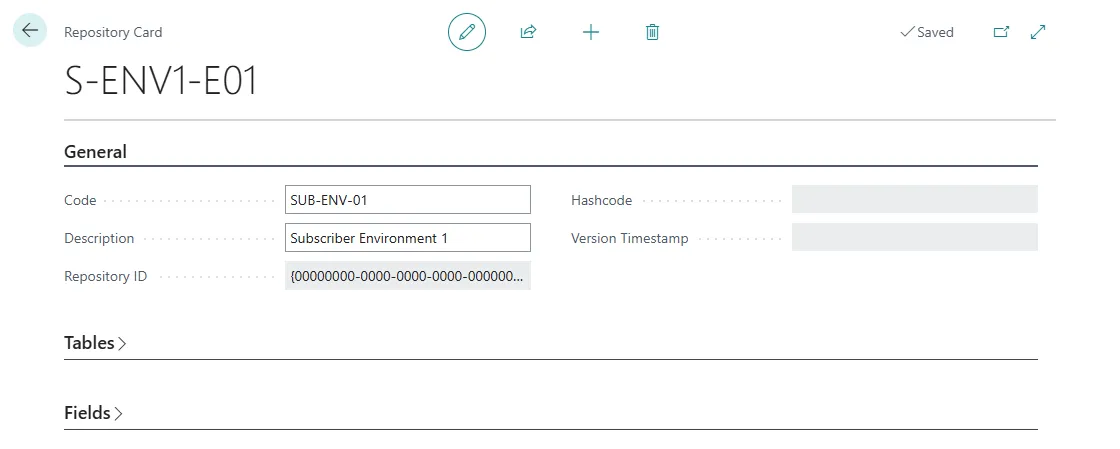
Note: The repository will contain the table and field structure over the connected subscriber environment.
3.5. Publish to entities in other environments
Section titled “3.5. Publish to entities in other environments”Go to the Entity List
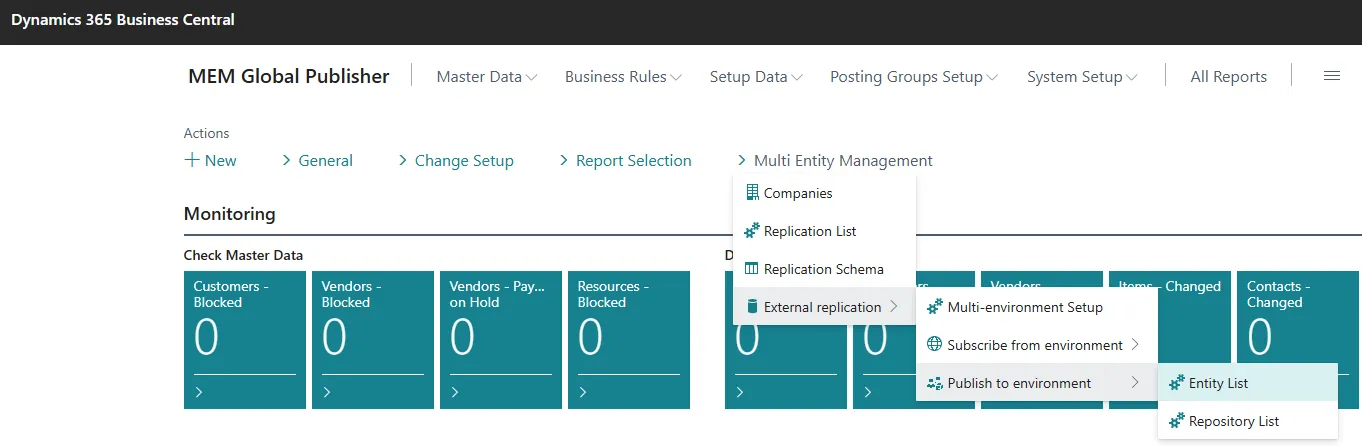
-
Insert Code, Description to identify the Subscribing Environment and Entity.
-
Insert the Repository Code to hold the table and field structure for the subscribing environment.

3.5.1 Publish with REST Web Service
Section titled “3.5.1 Publish with REST Web Service”NOTE: Use of REST Web Service communication recommended.
Multi Entity Management version 7.4.0 and above, use REST Web Service.
Versions below 7.4.0 must use the SOAP Web Service communication describes in the next section.API must be enabled for Business Central on premises databases.
To enable the REST Web Service communication, the following fields must have a value from the Subscriber Entity.
- Rest Endpoint Url
- Target Company
- Target Company Id

REST Endpoint URL - Before using the REST Endpoint URL below, the URL must be updated with current Business Cental “Tenant Id” and “Environment Name”
Cloud/SaaS environment https://api.businesscentral.dynamics.com/v2.0/“TenantId”/“EnvironmentName”/ODataV4/MemEndpoints_%1
- Replace the “TenantId” part with the Business Central Tenant Id
- Replace the “EnvironmentName” part with the Business Central Environment Name
On-premises database
http://“EnvironmentName”:7048/“ServiceTier”/ODataV4/MemEndpoints_%1?tenant=default
- Replace the “EnvironmentName” part with the Business Central Environment Name
- Replace the “ServiceTier” part with the Business Central ServiceTier Name
Insert the URL valuein field REST Endpoint (URL) in the Publisher Environment Entity List page.

Target Company and Target Company Id - Switch to the Subscribing Environment and Entity.
Open the Replication List and locate the Subscriber Company. At the Actionbar choose Show System Id
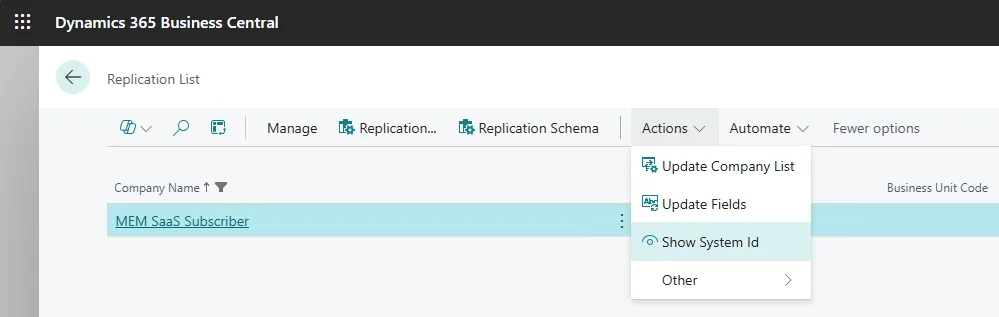
A messagesbox with the both Company Name and and System ID will appear
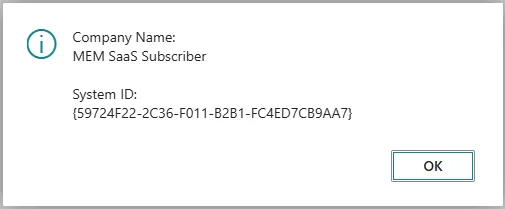
Copy the Company Name from the messagebox and insert the value in field Target Company in the Publisher Environment Entity List page.
From the same messagebox copy the System ID and insert the value in field Target Company Id in the Publisher Environment Entity List page.

When the field Use Rest is activated the REST Web Service communication are active.
3.5.2 Publish with SOAP Web Services
Section titled “3.5.2 Publish with SOAP Web Services”NOTE: Use of REST Web Service communication is recommended.
Multi Entity Management version 5.10.2 - 7.3.0, use the two SOAP Web Services. Versions above 7.4.0 the use of REST Web Service communication is recommended.
API must be enabled for Business Central on premises databases.
To enable the SOAP service communication, the the following fields must have a value from the Subscriber Entity.

- Subscription Webservice URL
- Management Webservice URL
Switch to the Subscribing Environment and Entity.
At External replication > Subscriber environment > Web Services locate codeunit 5397816 MemSubscriberService.
Copy the fieldvalue in SOAP URL and insert the value in field SOAP Subscriber URL in the Publisher Environment Entity List page.
Locate codeunit 5397819 MemManagementService.
Copy the fieldvalue in SOAP URL and insert the value in field SOAP Management URL in the Publisher Environment Entity List page.
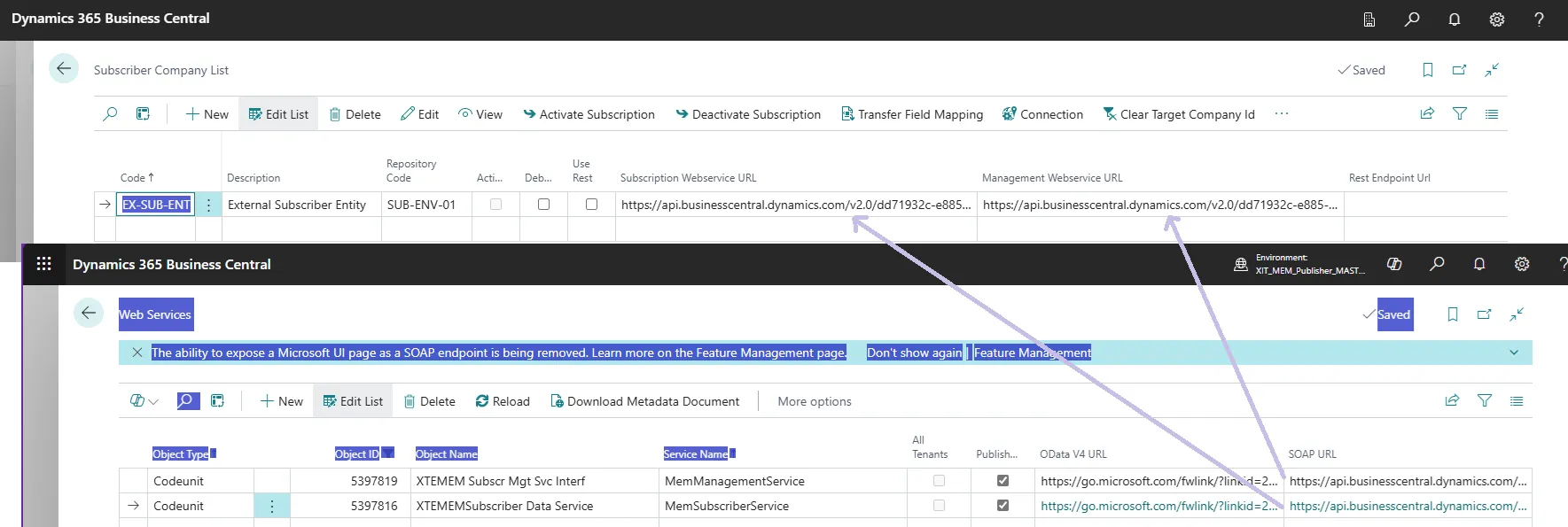
Check the field Use Rest has no Checkmark.

3.5.3 Authentication
Section titled “3.5.3 Authentication”Choose the Authentication Methods
Basic Authentication/Web Access Key:
- Choose Web Access Key or Basic Authentication in the field Auth. method- Insert Business Central User Name in the field User/Id- Web Service Access Key in the field Password/Key
The field “Tenant Id” is left empty, without any value.(See section 4.1 about how to setup authentication)
Service-to Service Authentication:
- Choose Service-to-Service (Client Credentials) in the field Auth. method- Insert the Directory (tenant) ID in the field Tenant Id- Insert the Application (client) ID in the field User/Id- Insert the Secret key value in the field Password/Key.
(See section 4.2 about how to setup authentication)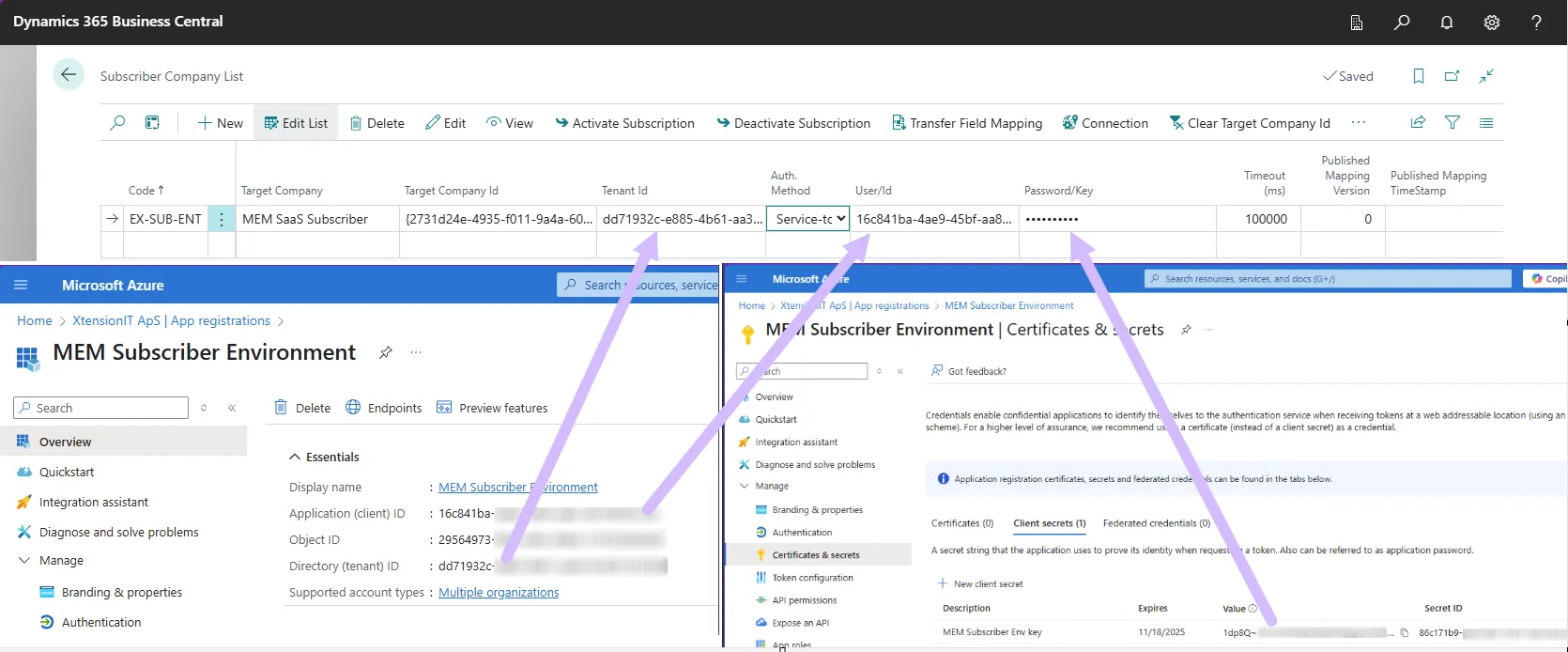
Choose Connection > test > Check Subscriber is Reachable (This is a REST only functionality)
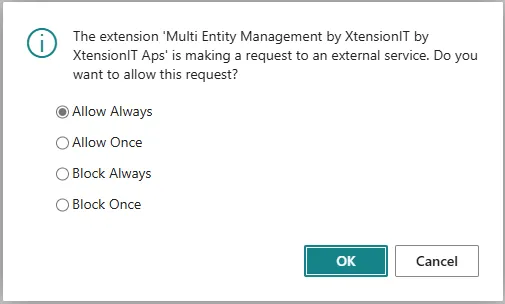
Choose the Allow Always if the optionbox appears.
Run the function “Bind-to Publisher” and get the confirmation box.
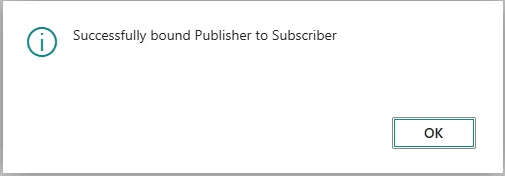
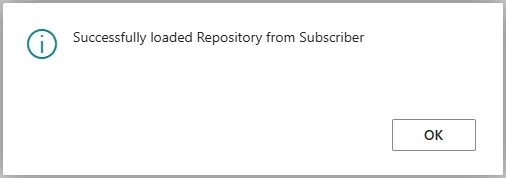
Run the function “Get Repository” and get the confirmation box.
3.6. Replication Setup
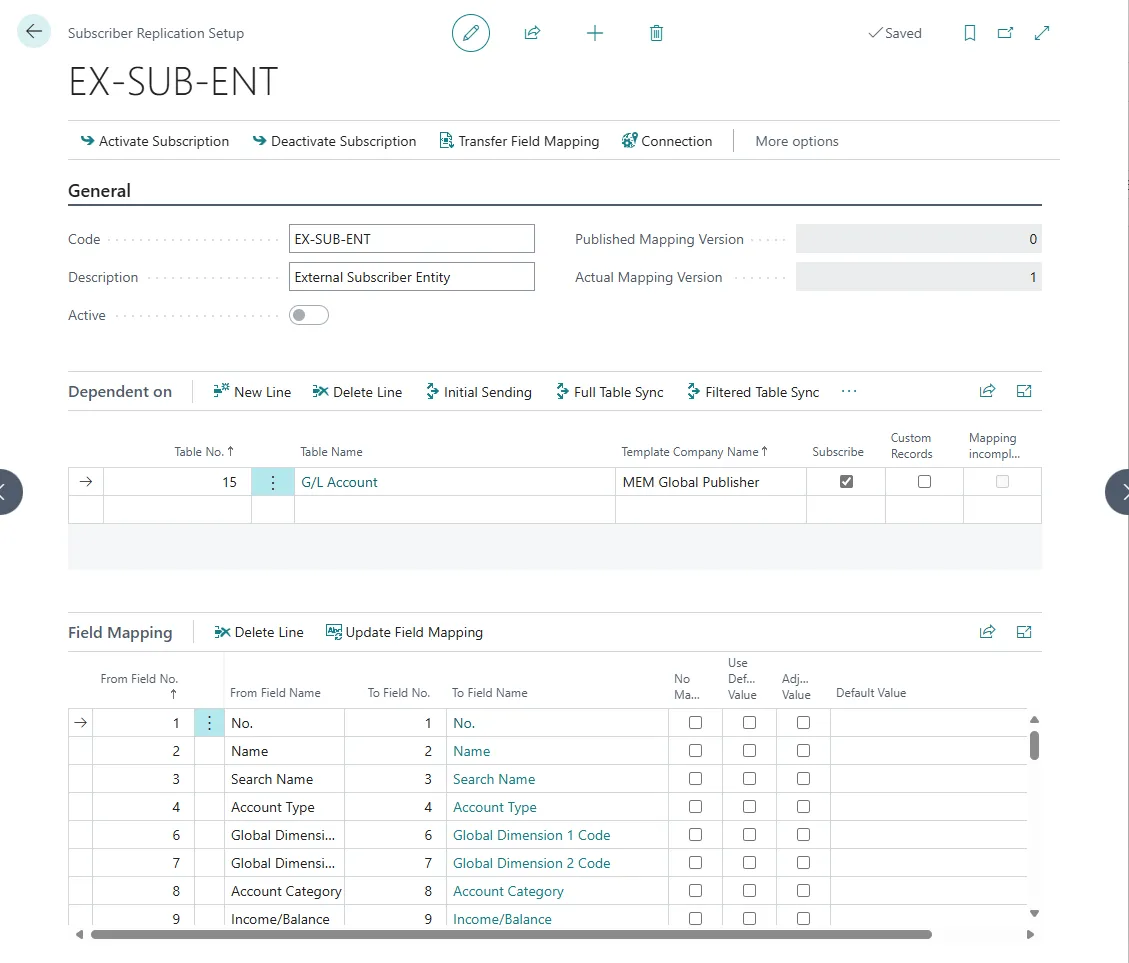
Section titled “3.6. Replication Setup”It is now time to do the Cross Environment Replication setup Go to the “Entity List” and open the Page Card. Do the Replication Setup in the “Dependent on” section and set Checkmark in the “Subscribe” field.
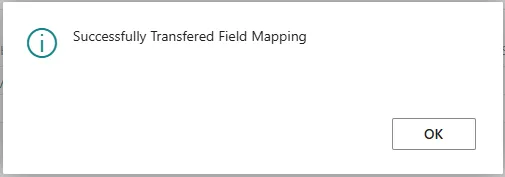
Use the function “Transfer Field Mapping”, to transfer the Publishing setup to the External Subscriber Company
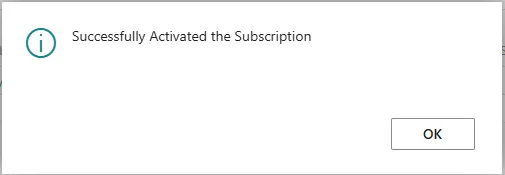
Use the function “Activate Subscription” to automate the replication
Use the function Full Table Sync to make the initial master data transfer
4. Authentication methods.
Section titled “4. Authentication methods.”There is different requirement to the authentication’s methods used, when replicating data across different version of Business Central Environments/Databases and NAV Databases.
4.1. Basic or Service-to-Service Authentication.
Section titled “4.1. Basic or Service-to-Service Authentication.”When Master Data is replicated between different Environments or Databases there is a requirement for either Basic or Service-2-Service authentication to validate the communication. When a Business Central SaaS Environment is a subscriber, Service-2-Service Authentication is required. See the table below.
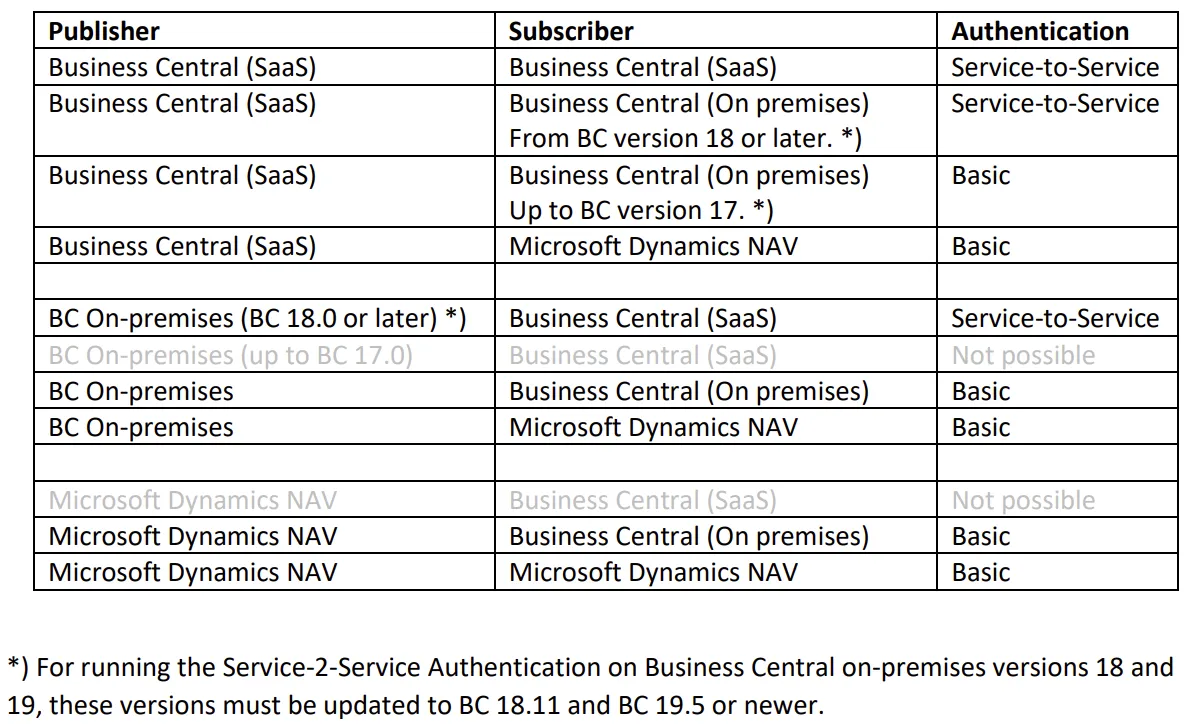
More details can be found with the Microsoft Learn link: https://learn.microsoft.com/en-us/dynamics365/business-central/dev-itpro/administration/automation-apis-using-s2s-authentication
4.2. Basic Authentication – Initial setup
Section titled “4.2. Basic Authentication – Initial setup”To enable the Basic Authentication methods, create a User assigned both the Business Central Password Authentication and a Web Service Access Key in the subscriber environment/database.
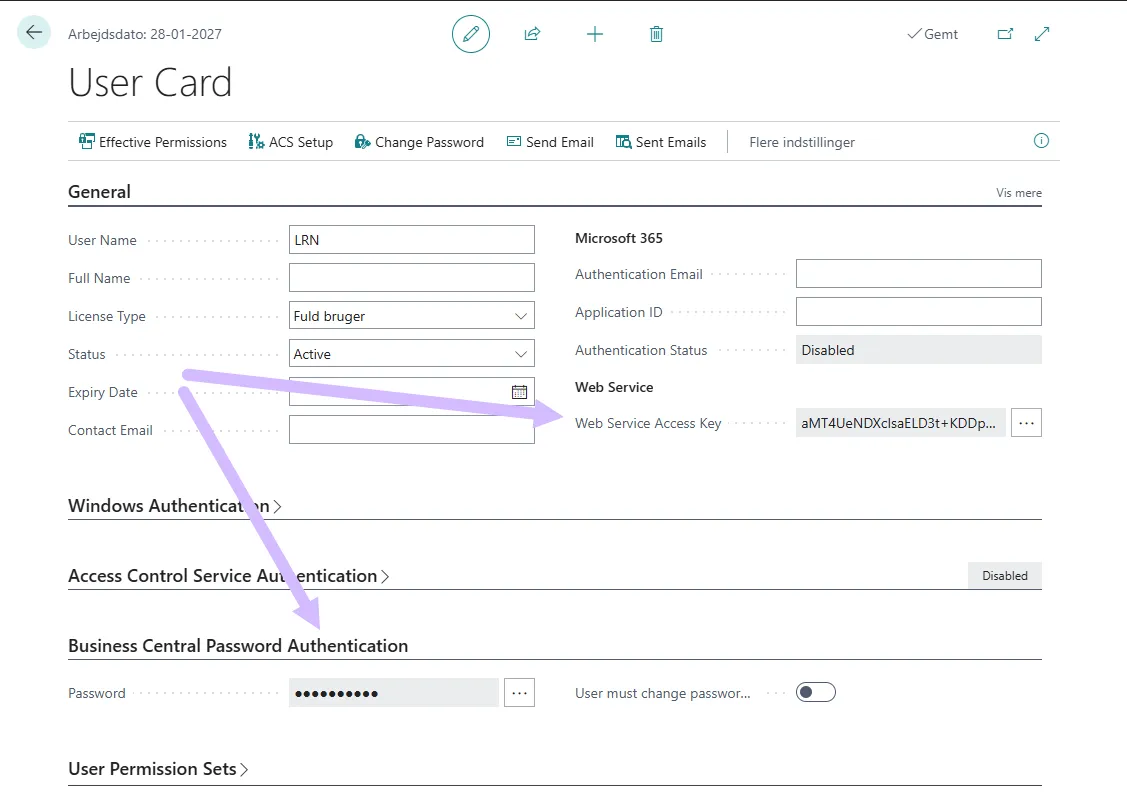
Note: If the Business Central subscriber environment/database is setup with Windows Authentication, there must be created an extra Service Tier, to handle the Webservice access with Business Central Password Authentication.
4.3. Service-to-Service Authentication – Initial Setup
Section titled “4.3. Service-to-Service Authentication – Initial Setup”If the replication setup require service-to-service authentication, there are two steps to do.
- Make an App registration to registrer an application in Azure Active Directory tenant for authenticating API call against Business Central
- Grant access for that application in Business Central
4.3.1. Register application in Azure Active Directory (ADD)
Section titled “4.3.1. Register application in Azure Active Directory (ADD)”To register an application in Azure Active Directory, do the following steps
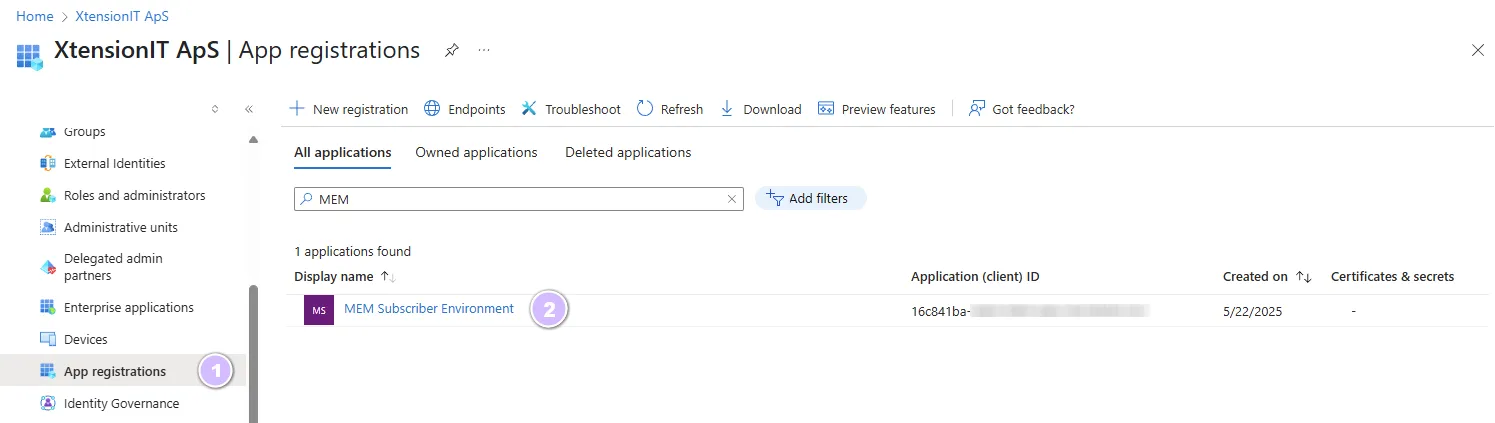
Open the Azure Portal, https://portal.azure.com
Search for Microsoft Entra ID in Azure Active Directory
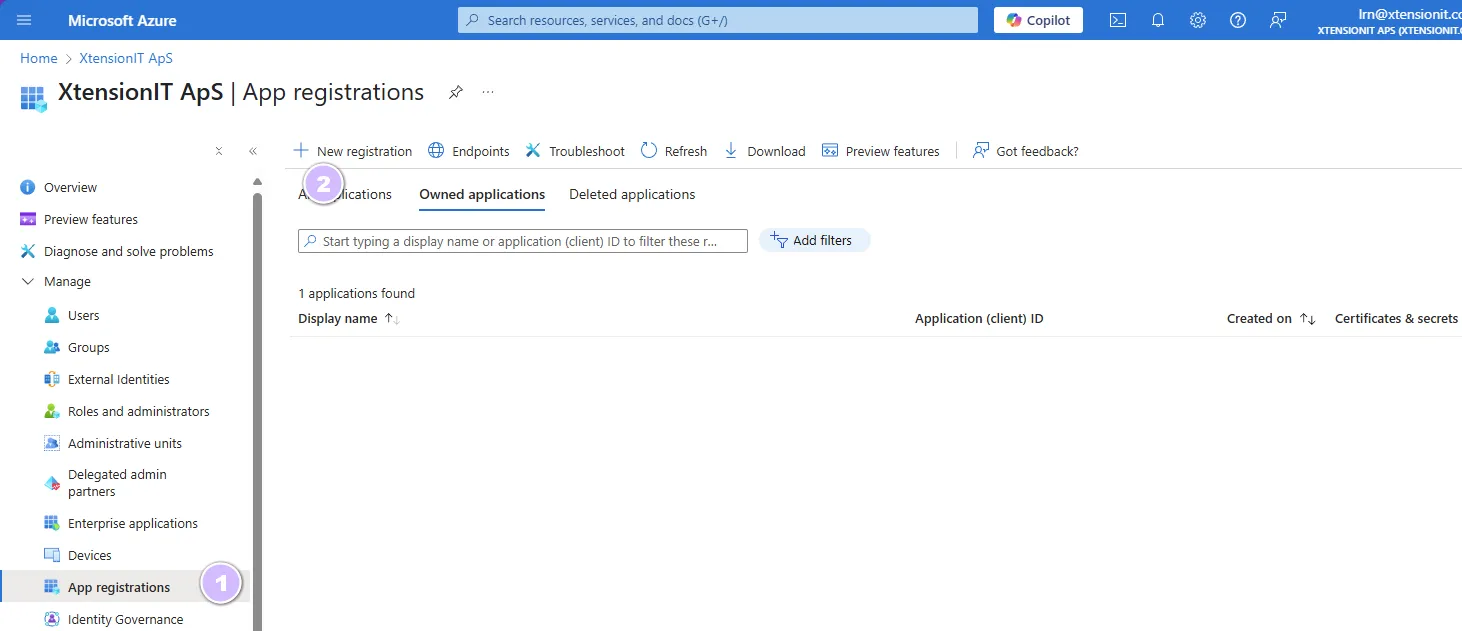
Select App registrations or Find App registration and + New registration.
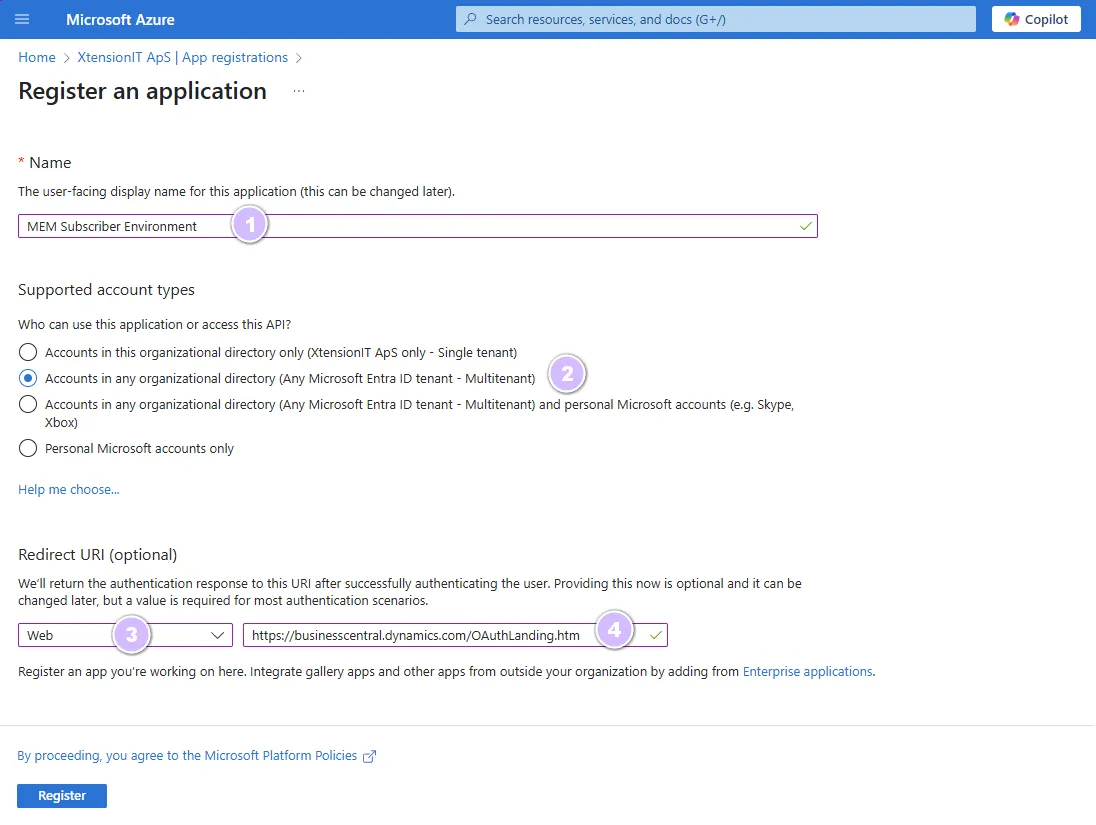
When creating the App registration select the following options
- Name:
- A suitable name
- Supported account type:
- Accounts in any organizational directory (Any Microsoft Entra ID tenant - Multitenant)
- Redirect URI (optional):
- Register with the Register button
The App registration is now created but requires permissions setup.
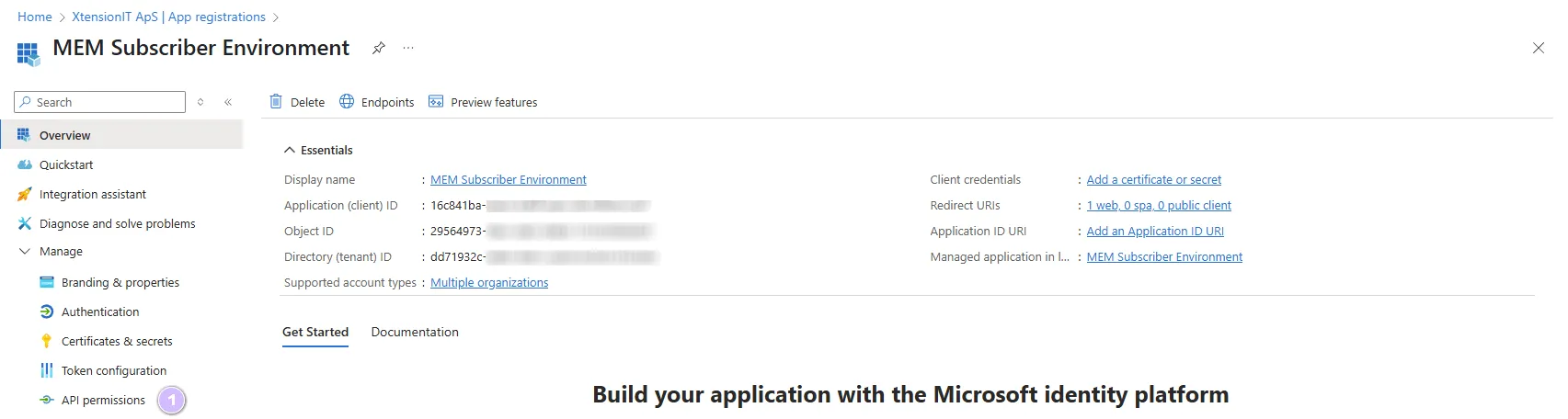
Open the App registration
Go to API permissions
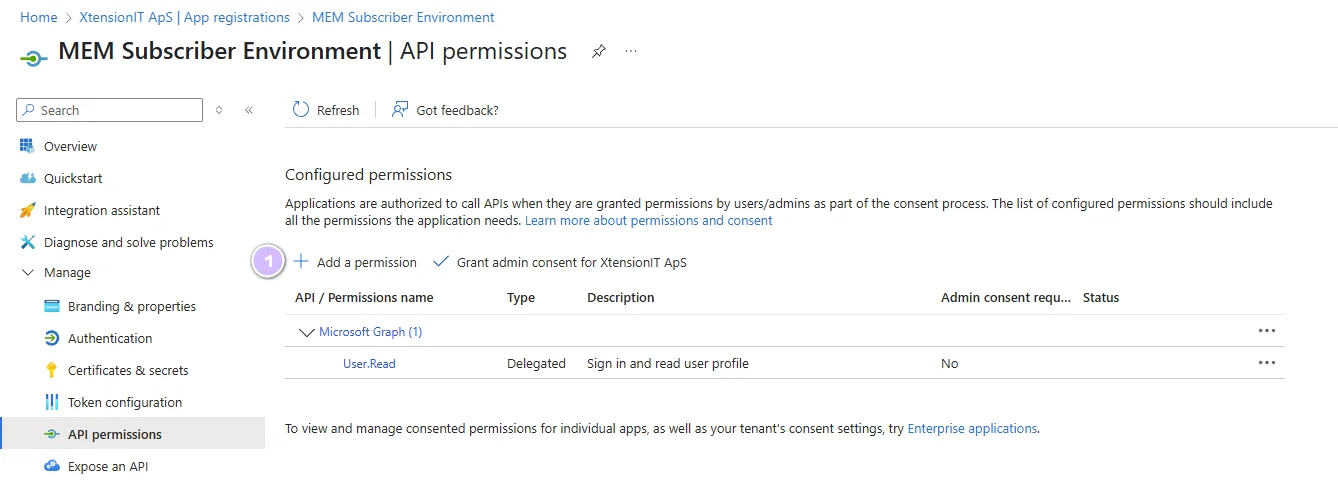
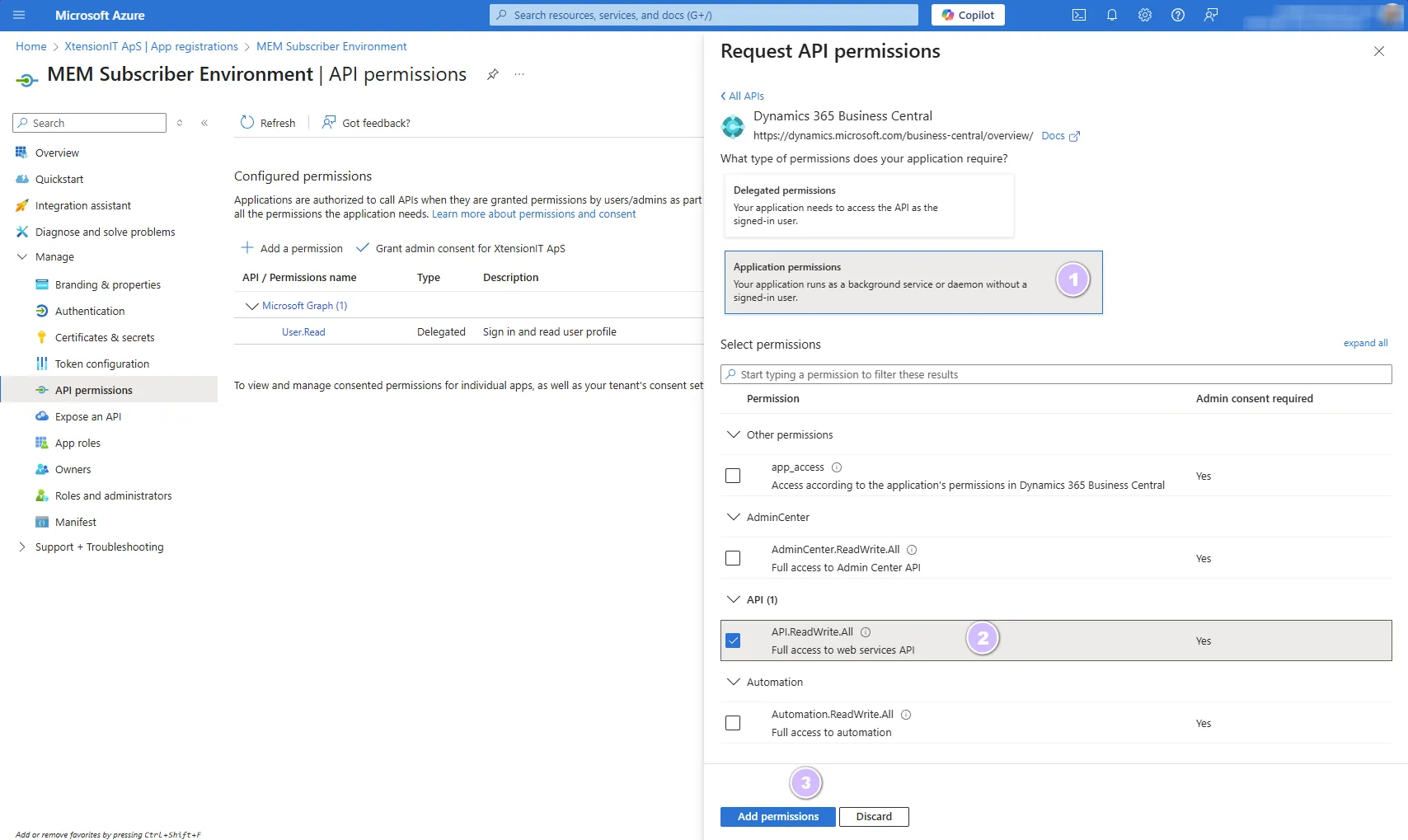
Select + Add a permission to open the Request API permissions page
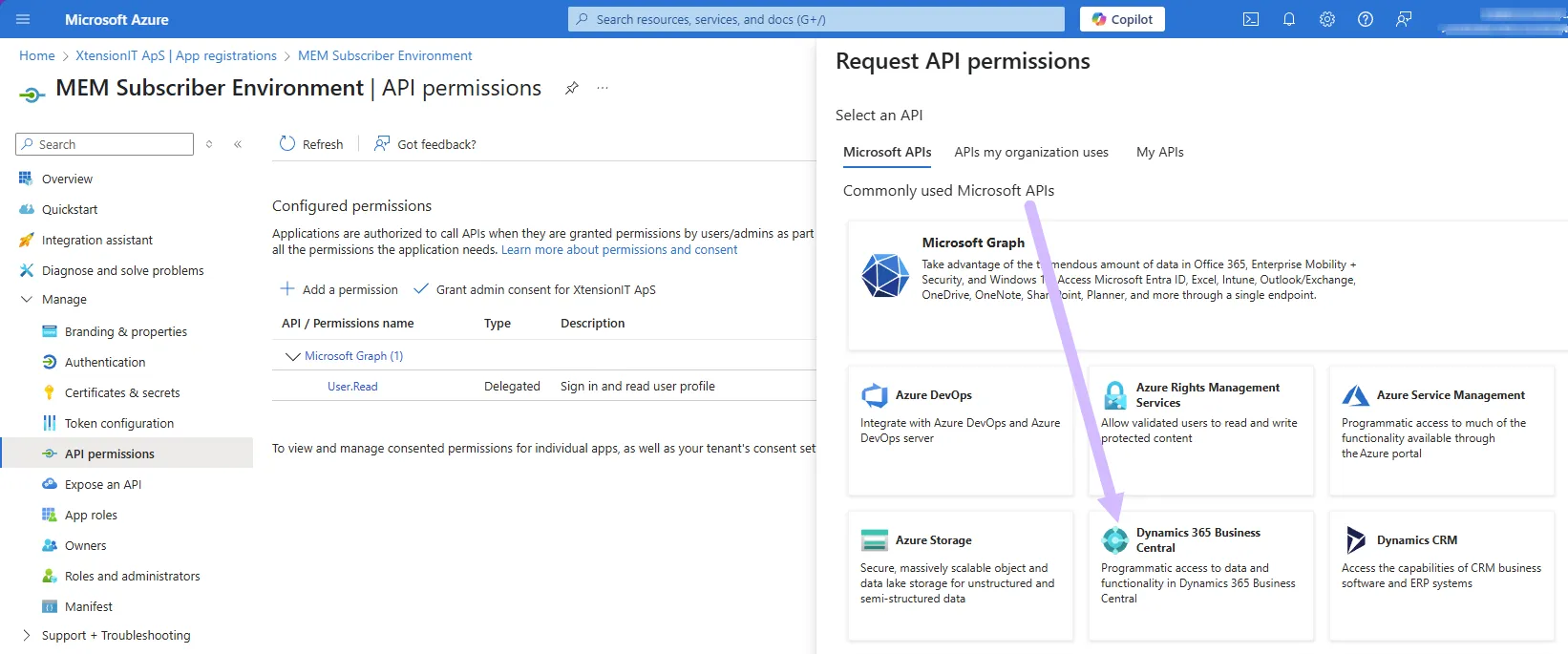
Select Dynamics 365 Business Central
Select the following options
- Select Application permissions
- Select API.ReadWrite.All
- Register with the Add permissions button
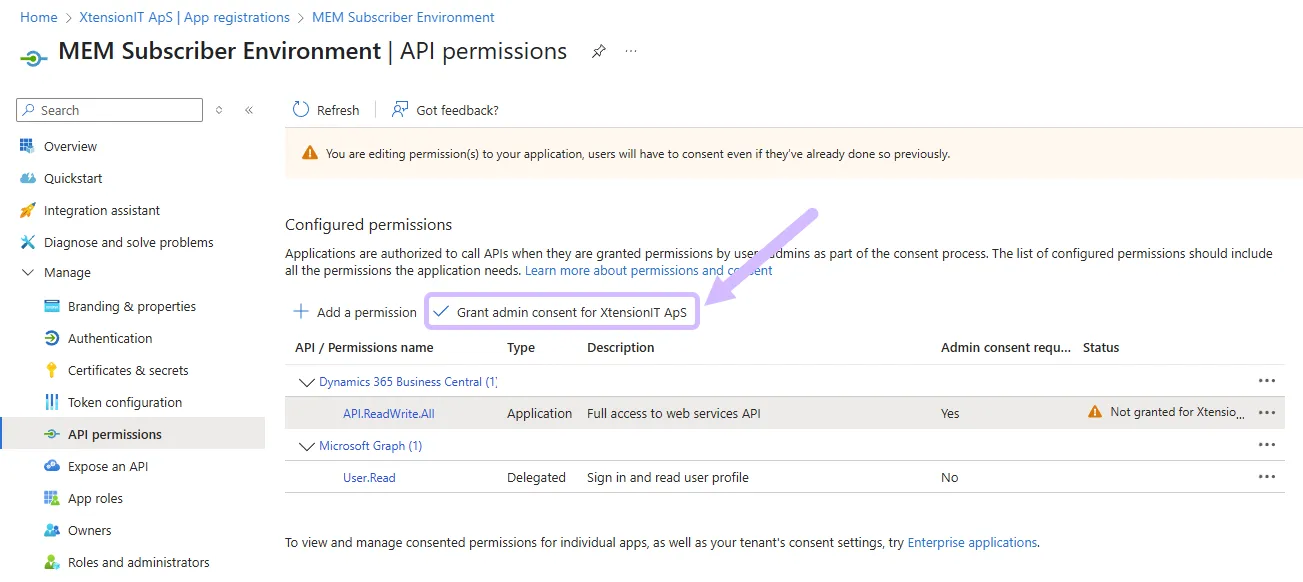
Then Grant admin consent for your organization
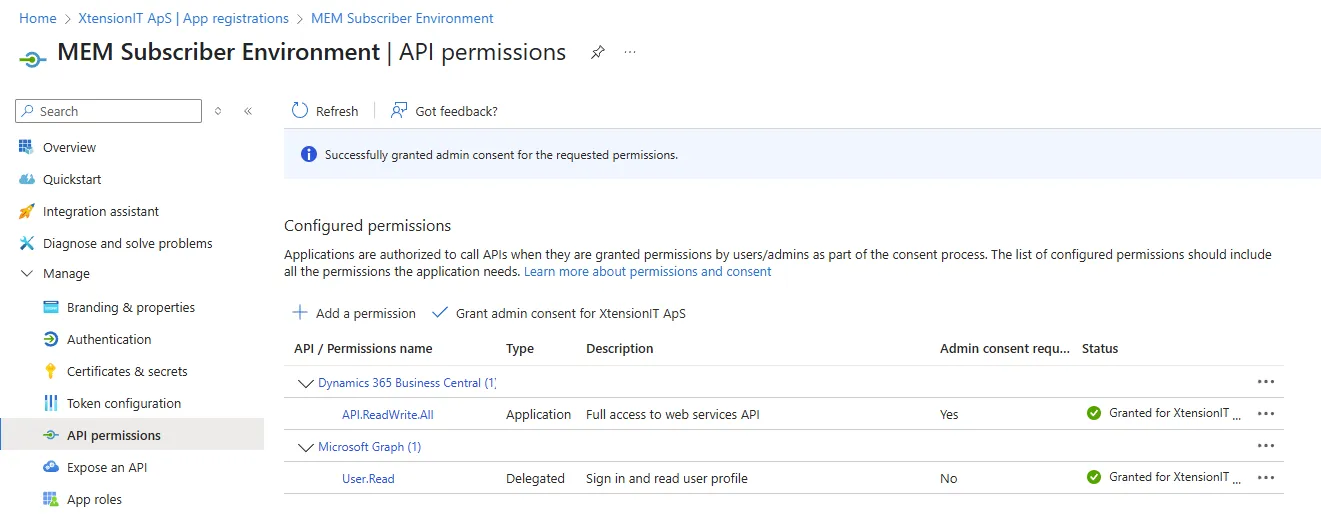
When the Consent is granted, the Status must be marked with a Green Check
After the permissions setup we must create the “Client secret”.
- Go to Certificates & secrets
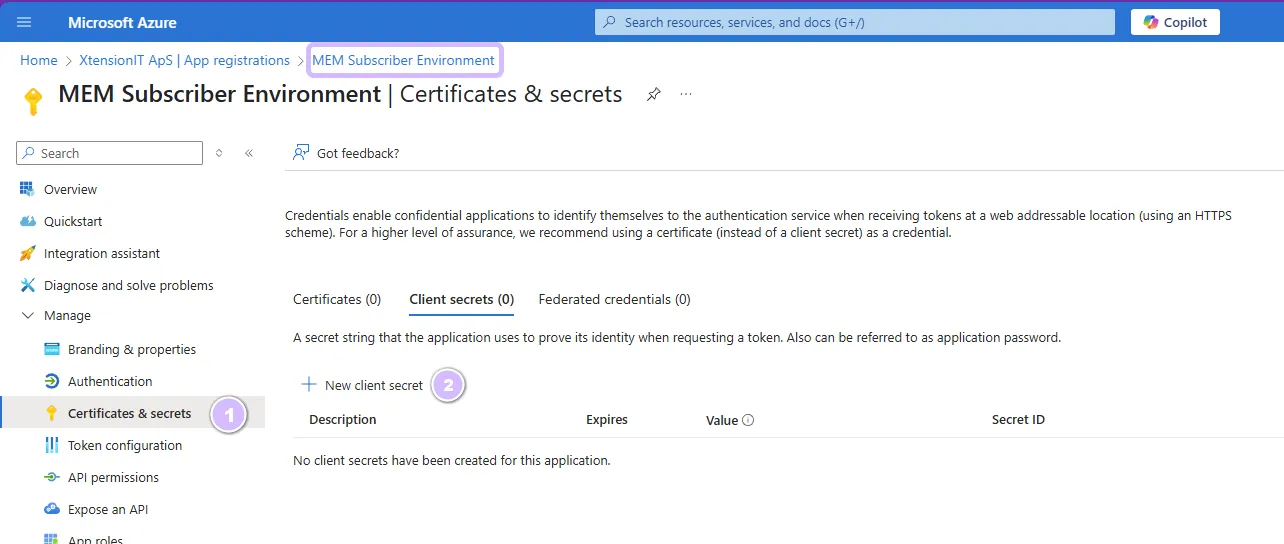
Select + New client secret to open the Add a client secret page
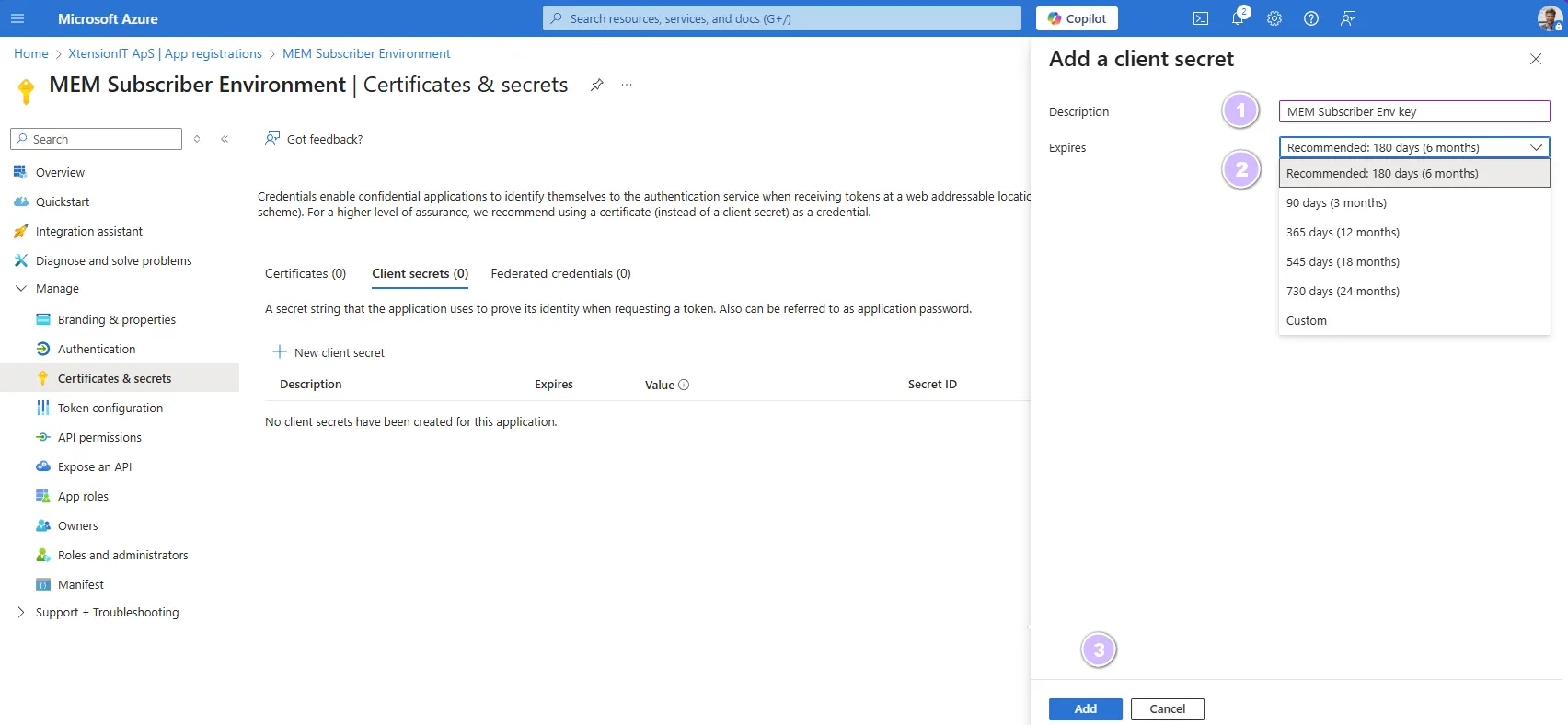
- Create the Client secret
- Give the Client Secret Key a proper description
- Select the lifetime of the Client Secret Key
- Register with the Add button
Store the Value and Secret ID of the “Client secret” a safe place. It is not possible to restore the value again.
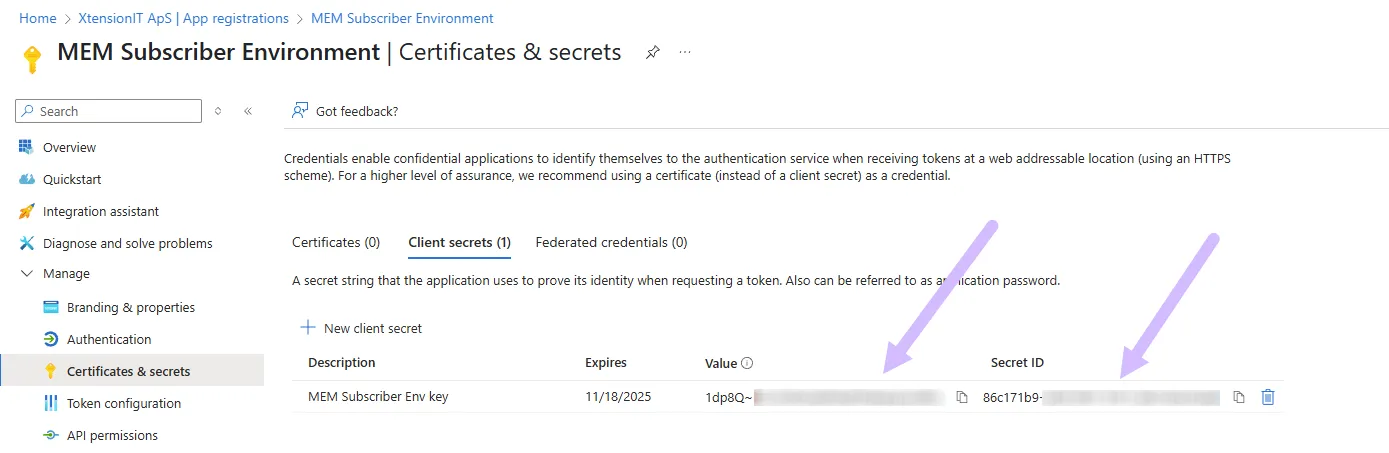
4.4. Grant access in Business Central
Section titled “4.4. Grant access in Business Central”The Business Central Environment that receives/subscribe data from a publisher Environment / Database must be setup to receive data and grant access to the publisher.
Search for Microsoft Entra Applications og create a + New
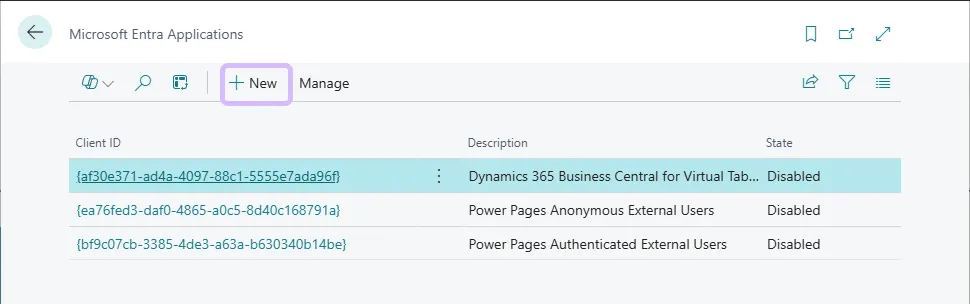
Insert value of the Application (Client) ID from the *App registration into the Business Centra Client ID field at the Microsoft Entra Application Card .
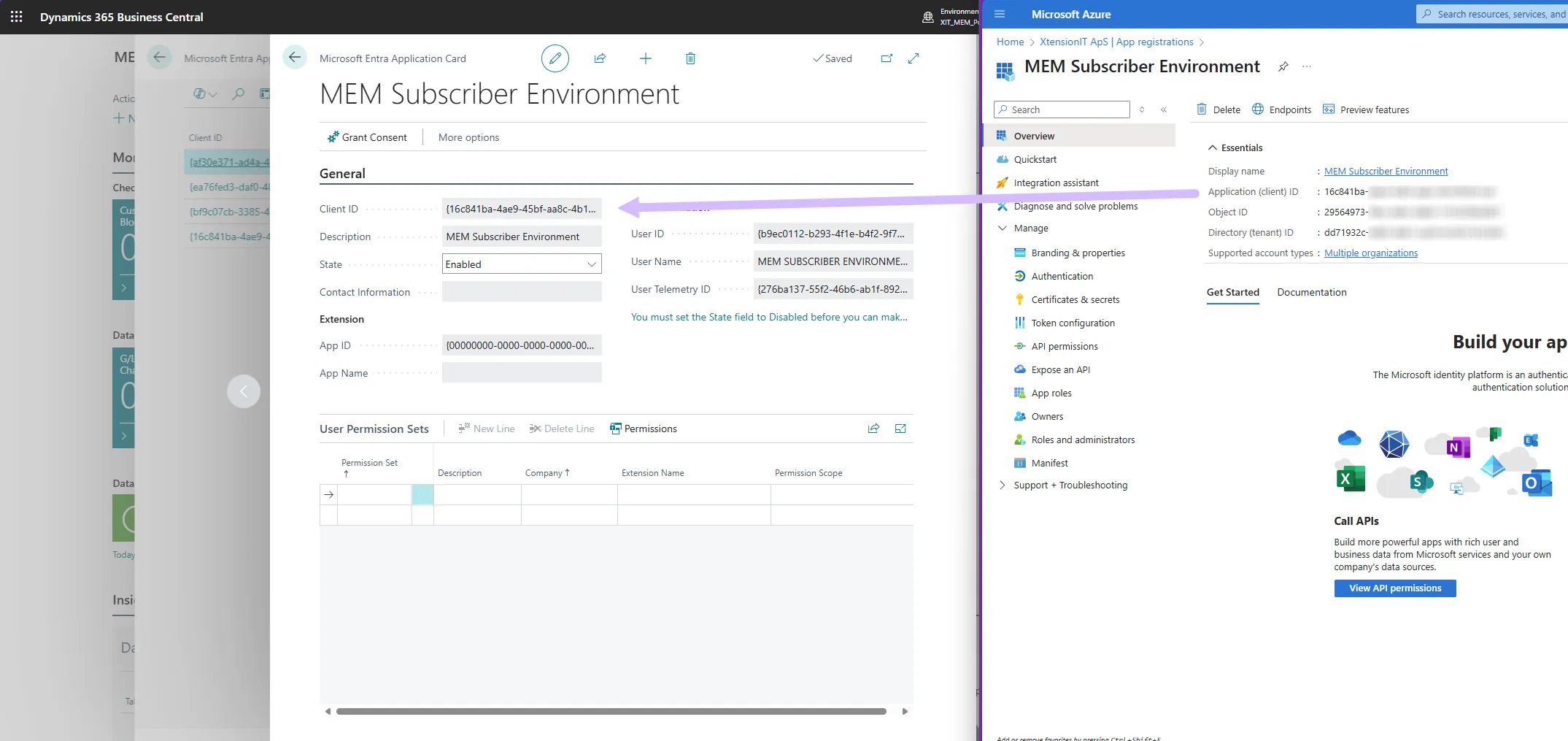
Set the field State to Enabled and Business Central will create a User ID and User Name
Create the following User Groups and User Permissions Sets in the User Permissions Sets page part.
| User Groups | User Permissions Sets |
|---|---|
| D365 ADMINISTRATOR | XTEMEM BASE |
| D365 AUTOMATION | XTEMEM BASIC |
| D365 BASIC ISV | XTEMEM MDSETUP |
| D365 BUS PREMIUM | |
| D365 EXTENSION MGT | |
| D365 FULL ACCESS |
If the User Groups do not exist the skip it.
Now Grant Consent
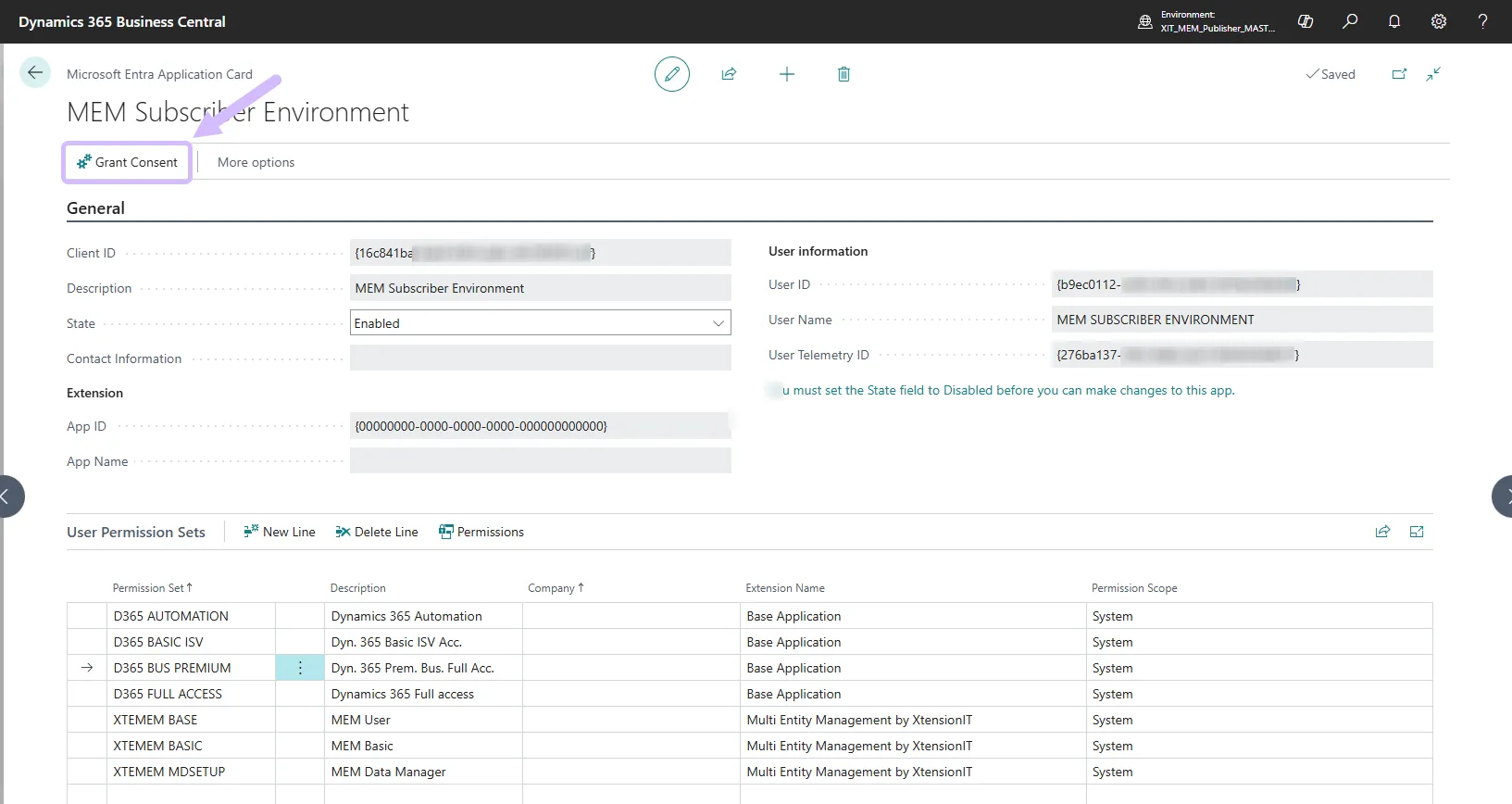
The consent must be grated by at user that have the proper permissions to the Azure Actice Directory
5. Notes on Cross Environment replication
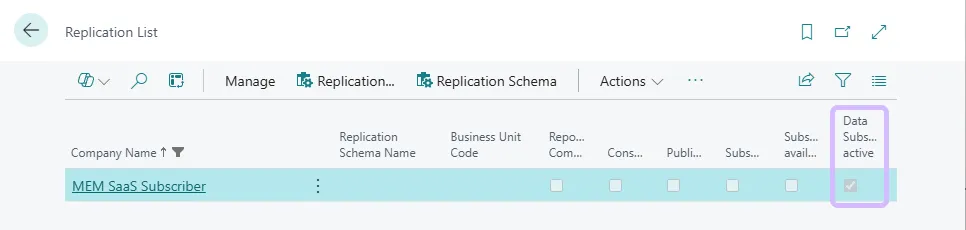
Section titled “5. Notes on Cross Environment replication”When using Cross Environment replication between environments through REST/SOAP Web Services, the Publish section will not show the the External Subscriber Companies in the *No. of Subscibers field or when using the function Subscriber Companies to show which Entities that are Subscriobing Companies.
The Replication List wil show if a company is an External Subscriber or Publish data to an External Subscriber.
Publisher is connected to an External Subscriber Environment

Subscriber is connected to an External Publisher
6. Troubleshooting
Section titled “6. Troubleshooting”6.1. Publisher is “C/SIDE” based and the Subscriber is AL based.
Section titled “6.1. Publisher is “C/SIDE” based and the Subscriber is AL based.”IF the Publisher Database is “C/SIDE” based and the Subscriber Database is AL based. The “Content Encoding” must be removed from Codeunit ”Subscription Web Request Mgt.”
Disable the line: // HttpWebRequest.Headers.Add('Content-Encoding','gzip, deflate');6.2. Both Publisher and Subscriber are OnPrem databases.
Section titled “6.2. Both Publisher and Subscriber are OnPrem databases.”OnPrem Databases both Publisher and Subscriber, must have the following added to “Service Tier Configuration”.
Set Checkmark in “Use NTLM Authentication”Set the field “Max Message Size” to minimum 51206.3. “Windows Authentication” and Subscriber Database
Section titled “6.3. “Windows Authentication” and Subscriber Database”When using Windows Authentication and
- Setup one Service Tier to handle all users with Windows Authentication.
- Setup another Service Tier to handle the Webservice access with NavUserPassword.
6.4. SOAP Exception Business Central 16
Section titled “6.4. SOAP Exception Business Central 16”The Cross Database Replication suddenly stop working.
- 2 example of error messages
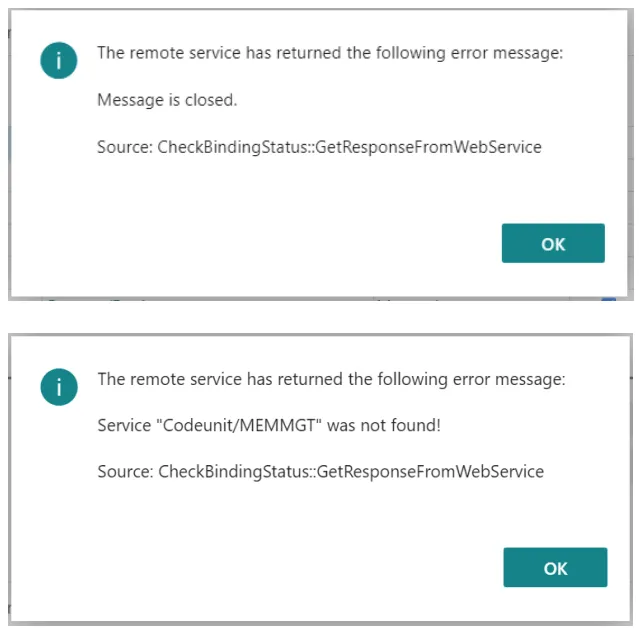
Solution: Restart of the instance.6.5. SOAP URL containing “default” more than once.
Section titled “6.5. SOAP URL containing “default” more than once.”The automatic created SOAP URL contains “default” more than once
- Example of incorrect url
- http://<environment_name>-default:7047/BC/WS/DE Subscriber Master/Codeunit/MemSubDataService?tenant=<environment_name>-default
Solution change the above url to
http://<environment_name>:7047/BC/WS/DE Subscriber Master/Codeunit/MemSubDataService?tenant=default